
x
Error:
How to handle an incoming MTA/DTA on TTConnect
General Intro
Did you or a scientist from your institution receive an MTA or DTA via TTConnect? This page provides step-by-step instructions how to handle an incoming MTA/DTA on TTConnect.TTConnect has several advantages compared to standard email:
- All communication is encrypted
- All communication and documents are saved in one place
- You can check the current status of your MTA/DTA at any time
- An electronic signature workflow is automatically started once all terms are accepted
- Unless you need to negotiate terms on the agreement, the MTA/DTA can be processed and signed in one day!
Step-by-step instructions
-
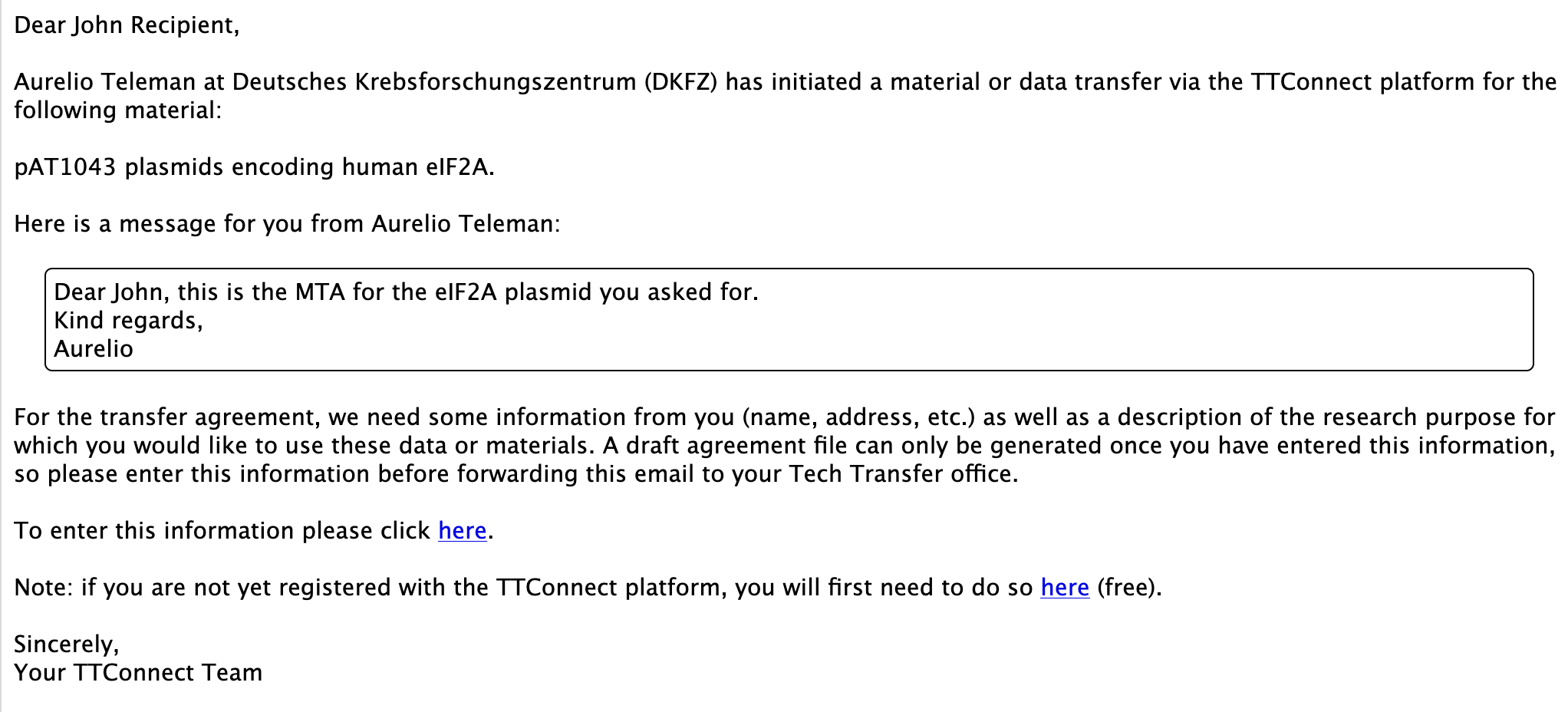
Once the Provider has initiated a new MTA or DTA on TTConnect, the recipient scientist will receive an email such as the one shown
below, informing him/her that there is a new MTA/DTA.
The email asks the recipient scientist to login to TTConnect and to provide some information such as his/her address and the purpose of research for the material or data.
Note: At this point in time, the MTA is only linked to the recipient scientist's email address. Hence, it is important that the recipient scientist completes this first step. Only once this is done, can the Technology Transfer Office of the recipient institution see the MTA/DTA.
Steps 2-12 below should be performed by the recipient scientist who received the email.
-
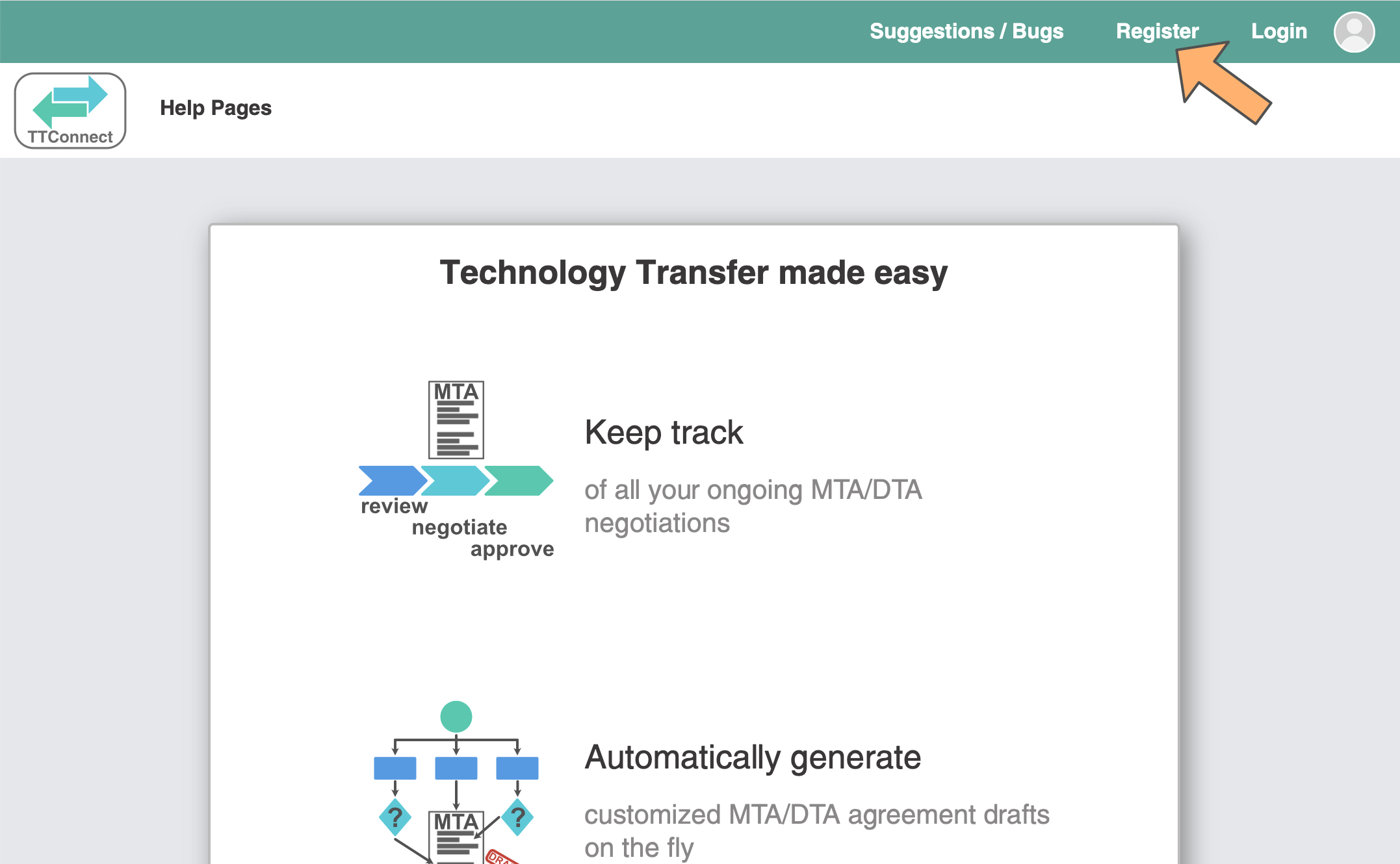
The recipient scientist (i.e. the person who received the email) needs to register on TTConnect. To do so, click on "Register"
in the upper right corner.
-
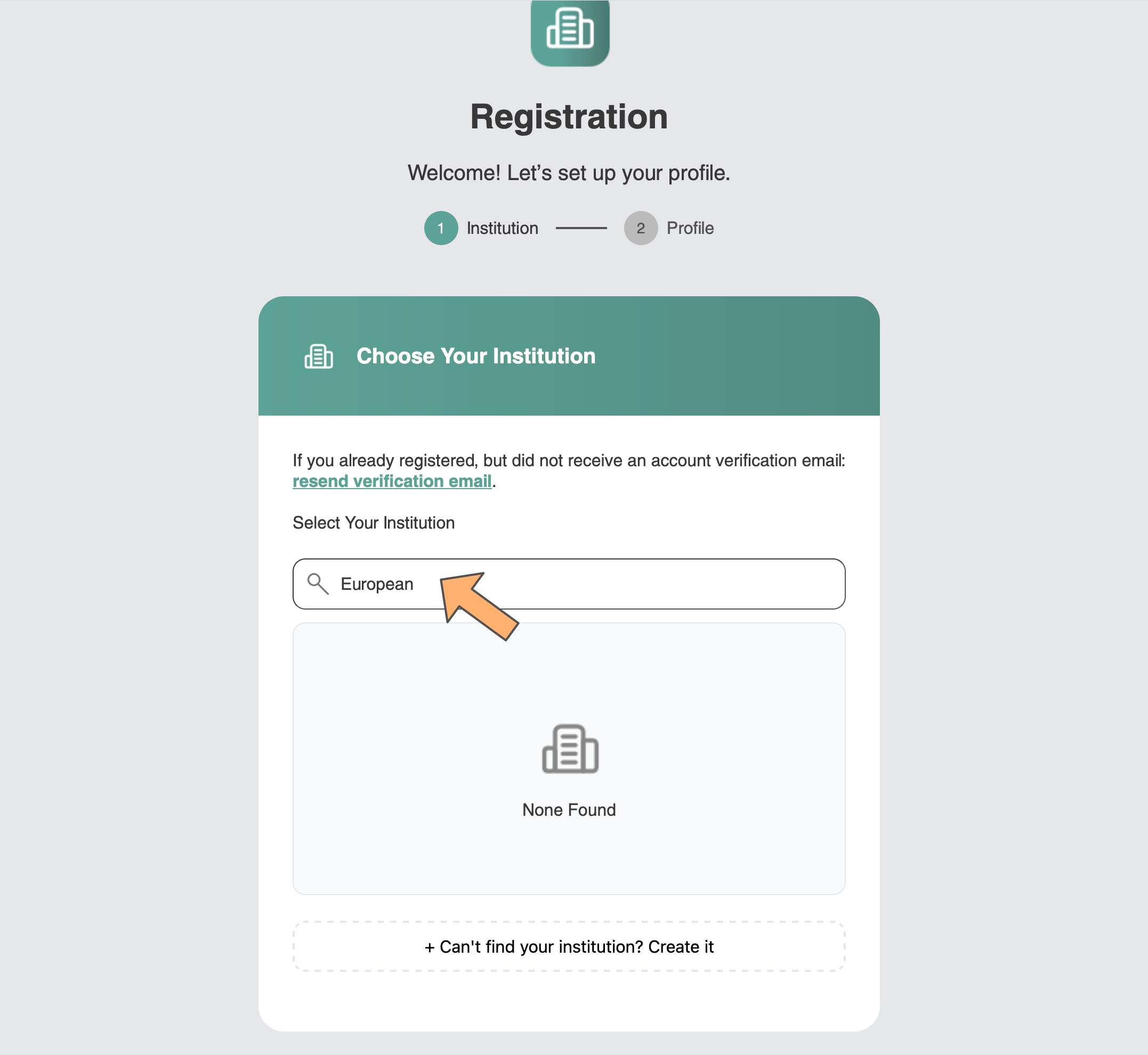
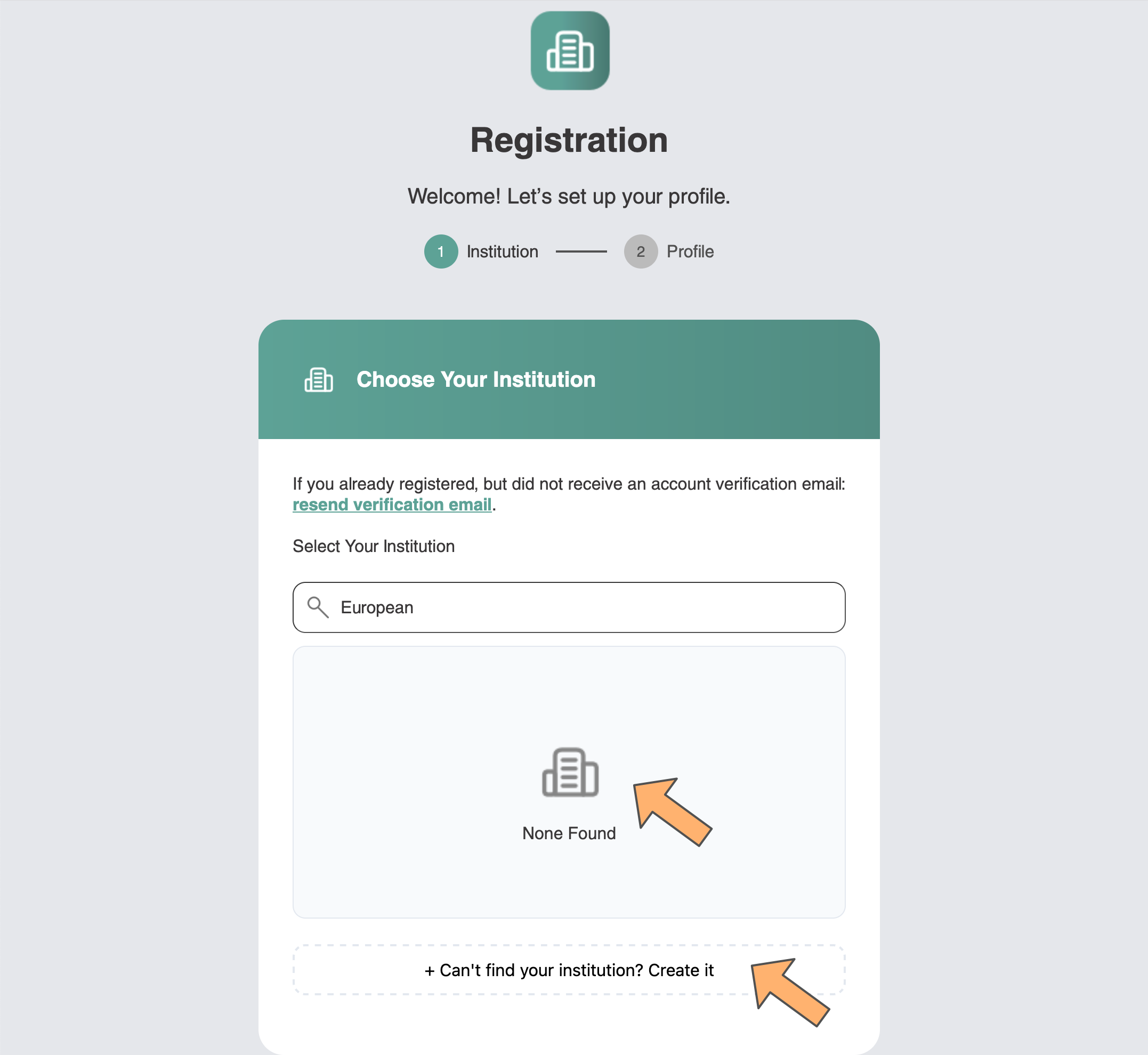
Start typing the name of your institution in the search field.
-
If no one from your institution has previously registered on TTConnect, you will see "none found".
In this case, click on "Can't find your Institution? Create it"
-
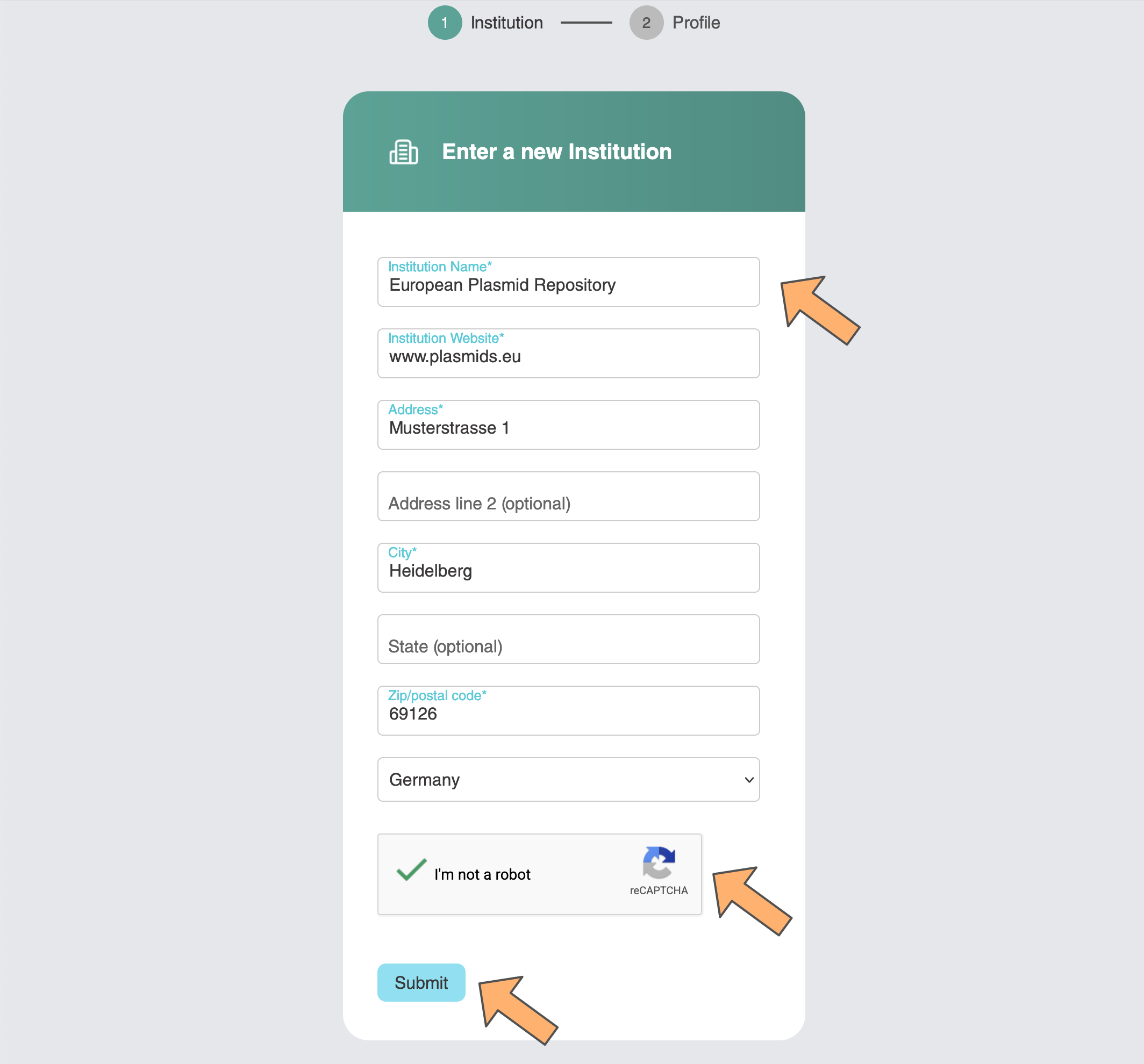
Enter the name and address of your institution, click on the reCAPTCHA, and click "submit".
-
On the next page, enter your name and requested information, and select a password for yourself,
which you need to enter twice.
Do not click on "I am the Technology Transfer or Legal representative for this institution".
If you are the PI of the lab, click "I am the PI / Lab Head".
Finally, click the reCAPTCHA and then "submit".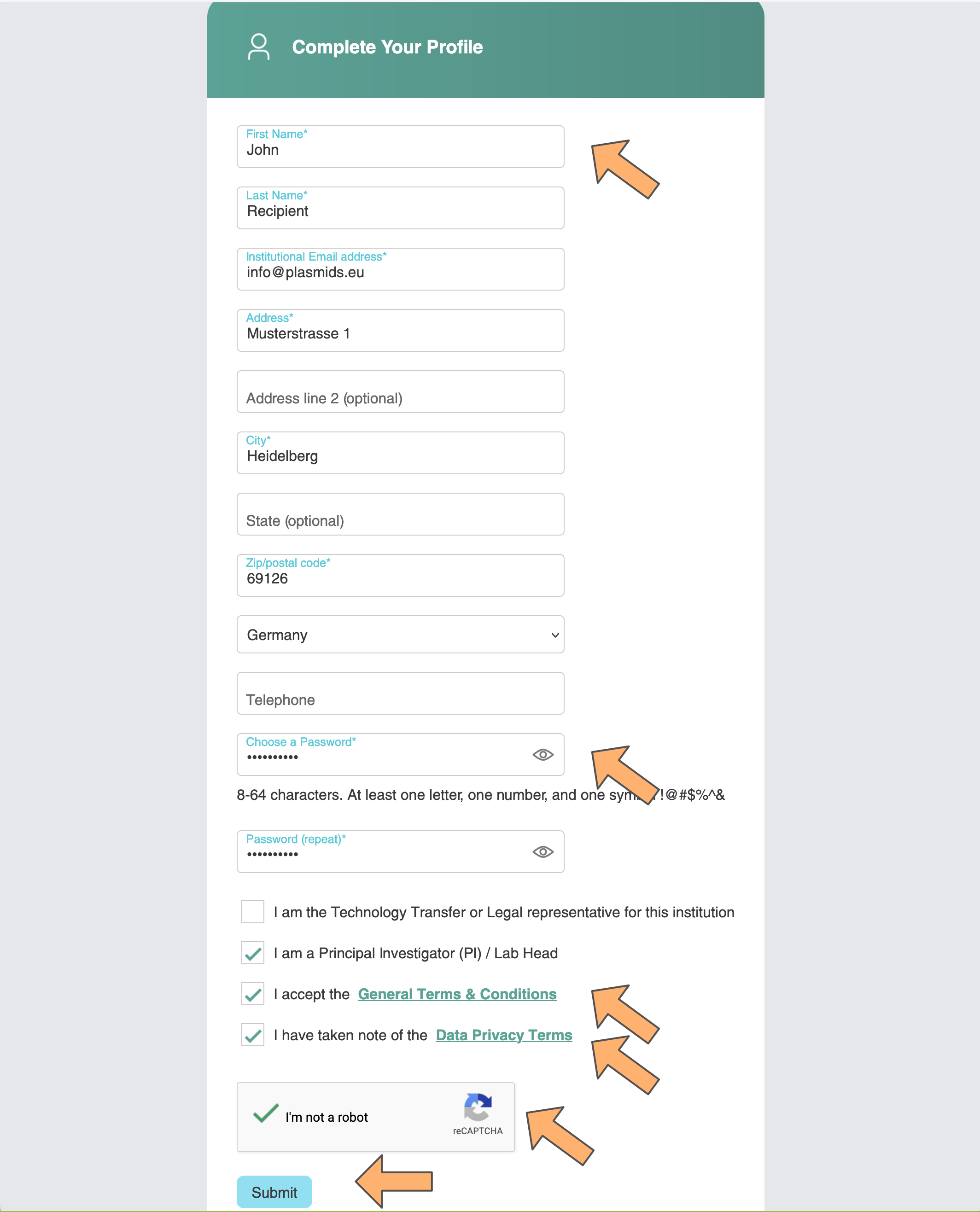
-
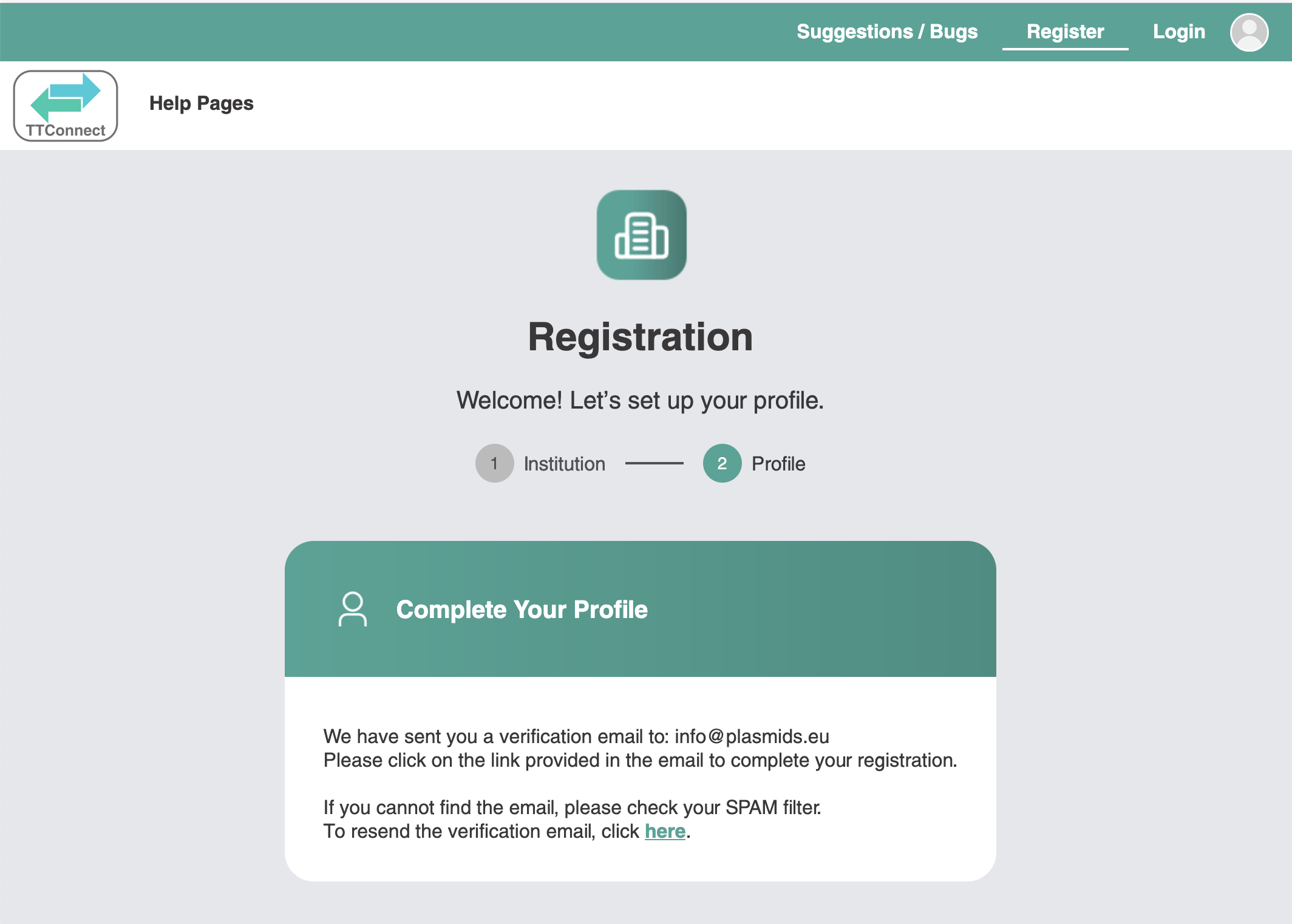
You will then see a confirmation page such as the one below.
-
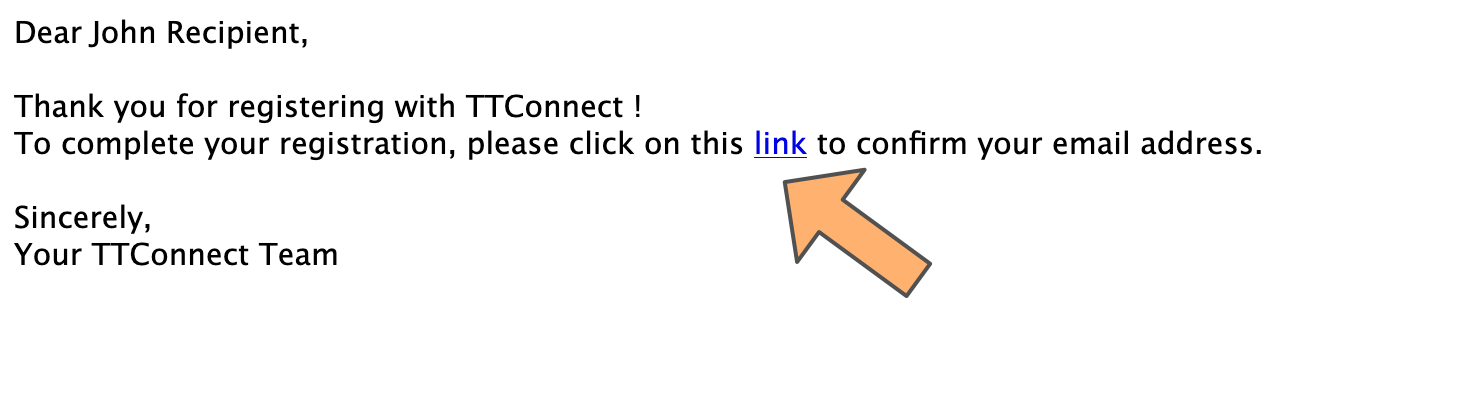
The last step to complete your registration is to confirm your email address. You should receive an email with
a confirmation link. If you don't receive one, please check your SPAM folder. Once you have received the email,
click on the link provided in the email.
-
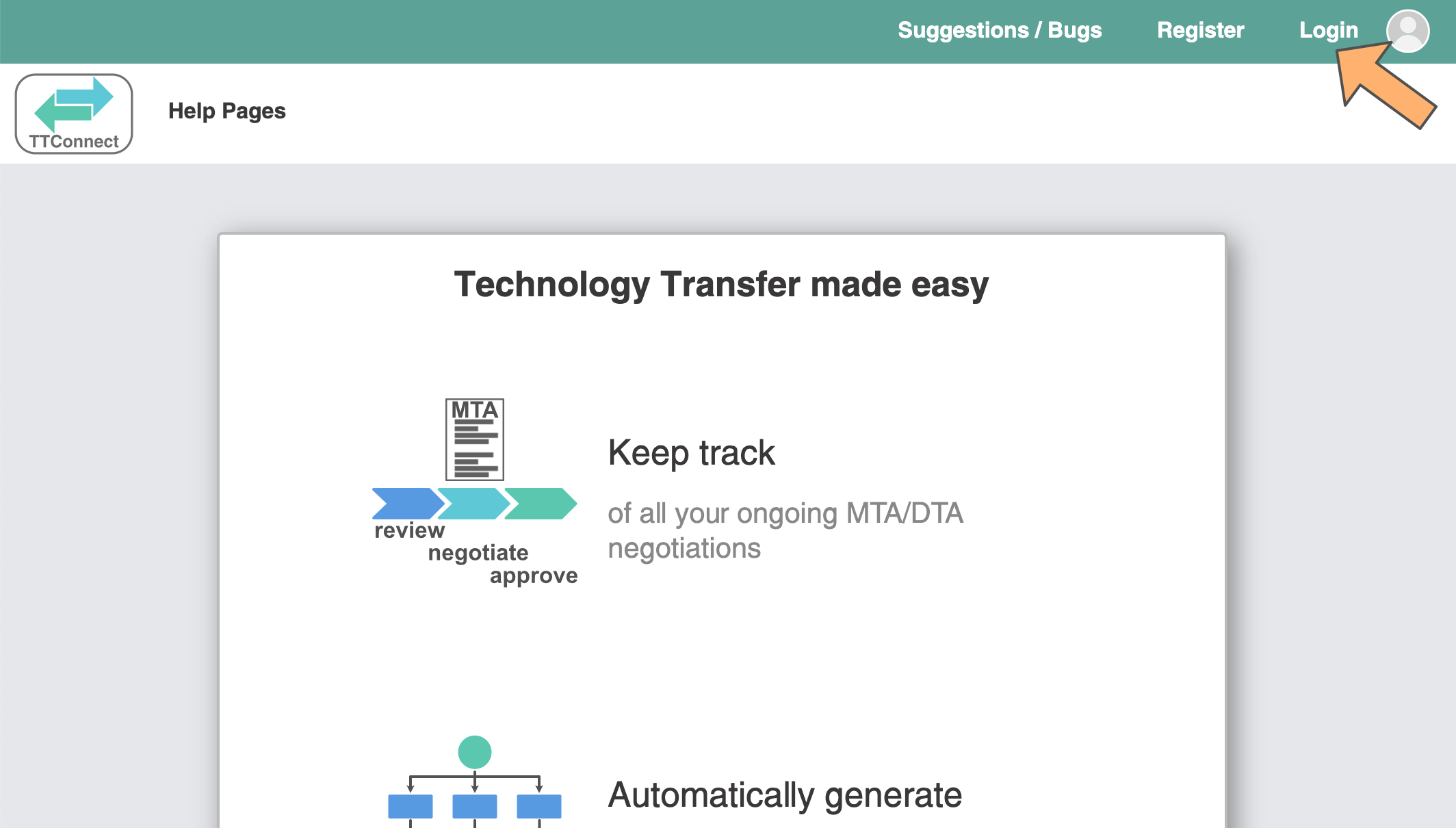
Now you can login by clicking "login" in the upper right.
-
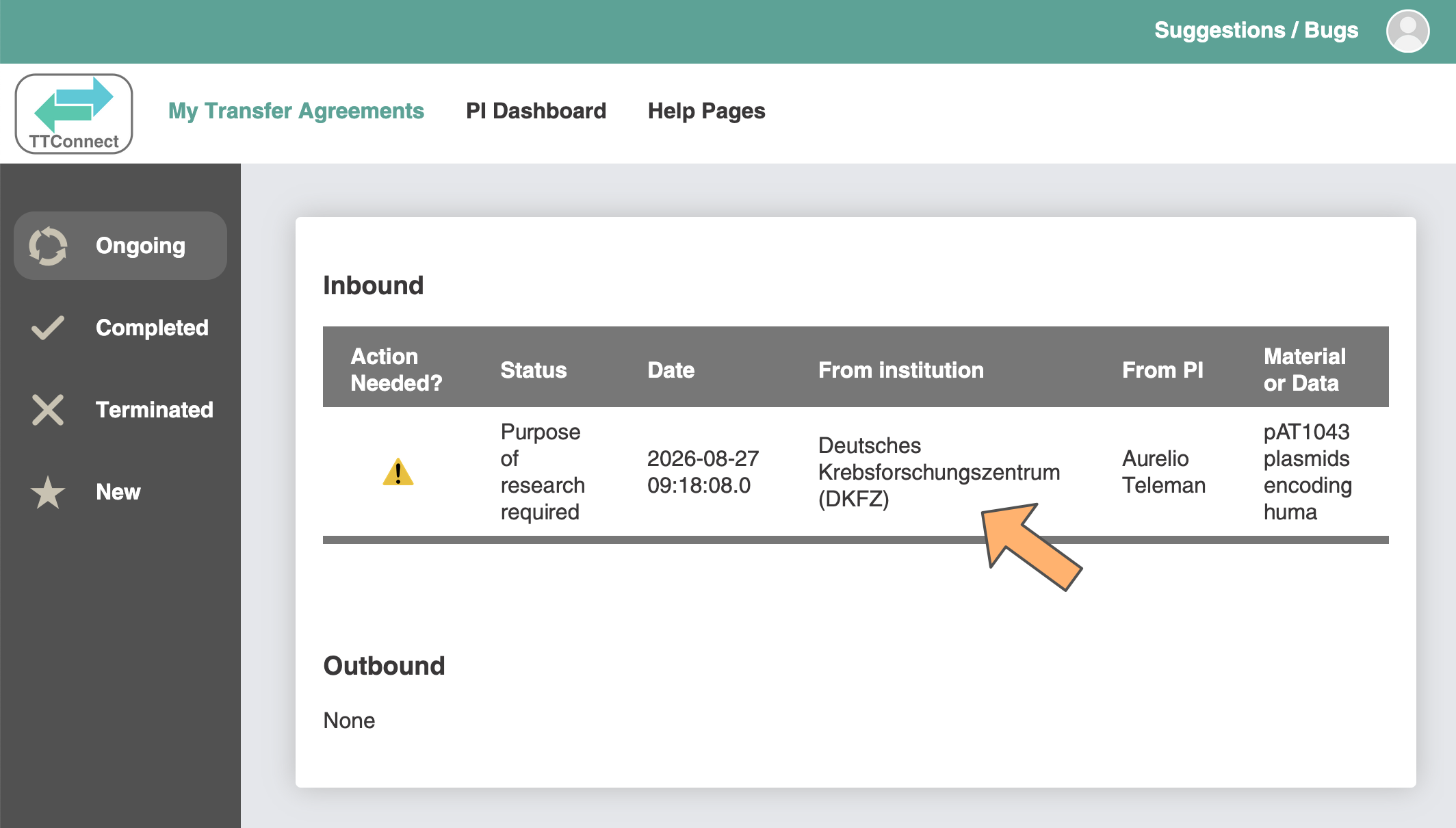
Once you've logged in, you will see a list of your ongoing MTAs/DTAs. Most likely you will have only one.
Click on the MTA shown in the table.
-
Enter the "Purpose of Research" in the top text area. This should describe what you plan to do with
the requested material or data.
At the bottom of the page, enter and confirm the email address of the Technology Transfer representative or legal representative of your institution who will handle the MTA.
At some institutions (e.g. some Swiss universities) the professors are allowed to handle MTAs. If this is the case, click on "I will coordinate the handling of this transfer agreement on behalf of my institution". In most cases, however, this is not the case.
When you click "submit", TTConnect will automatically generate a draft agreement based on the information you provided.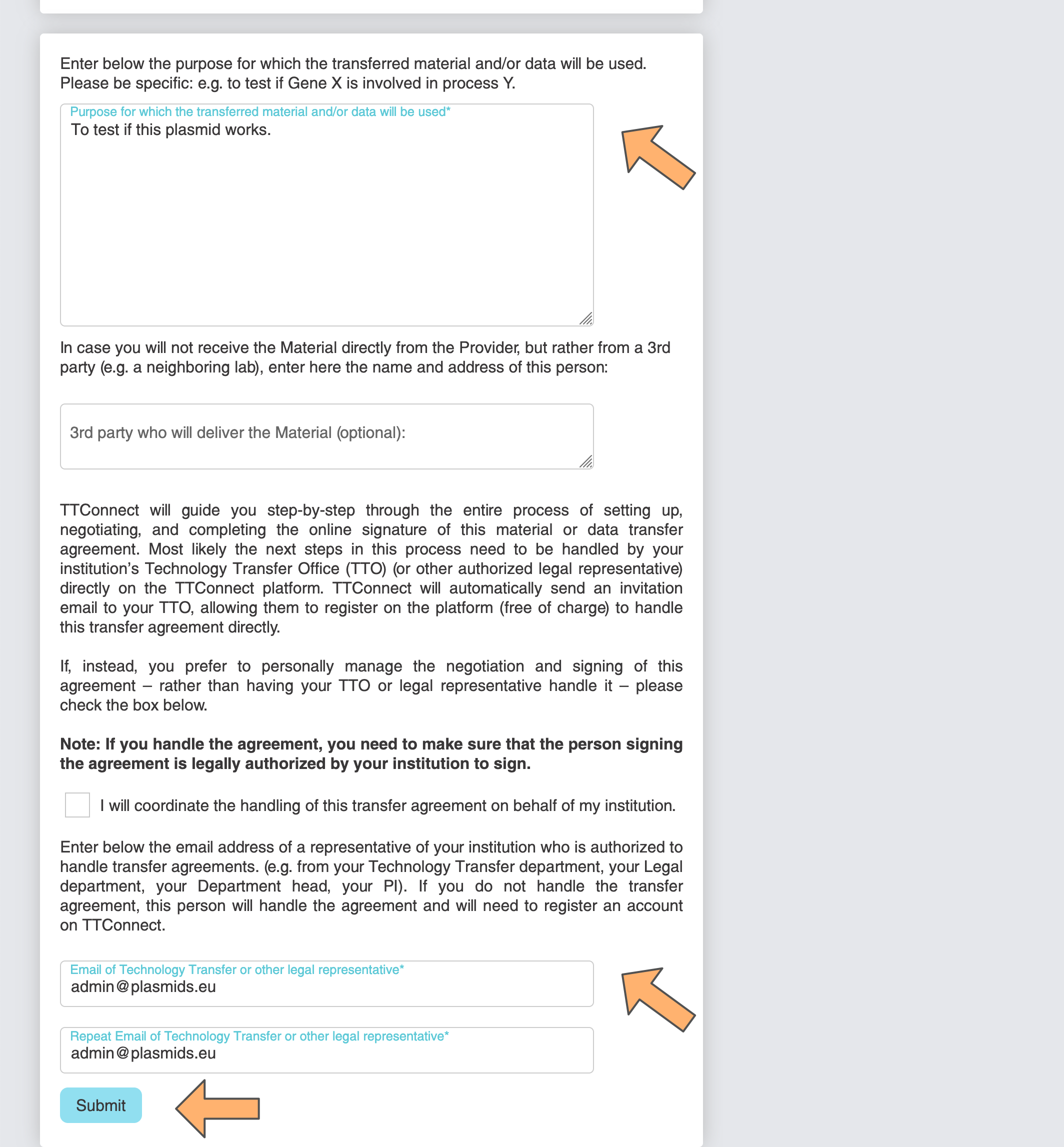
-
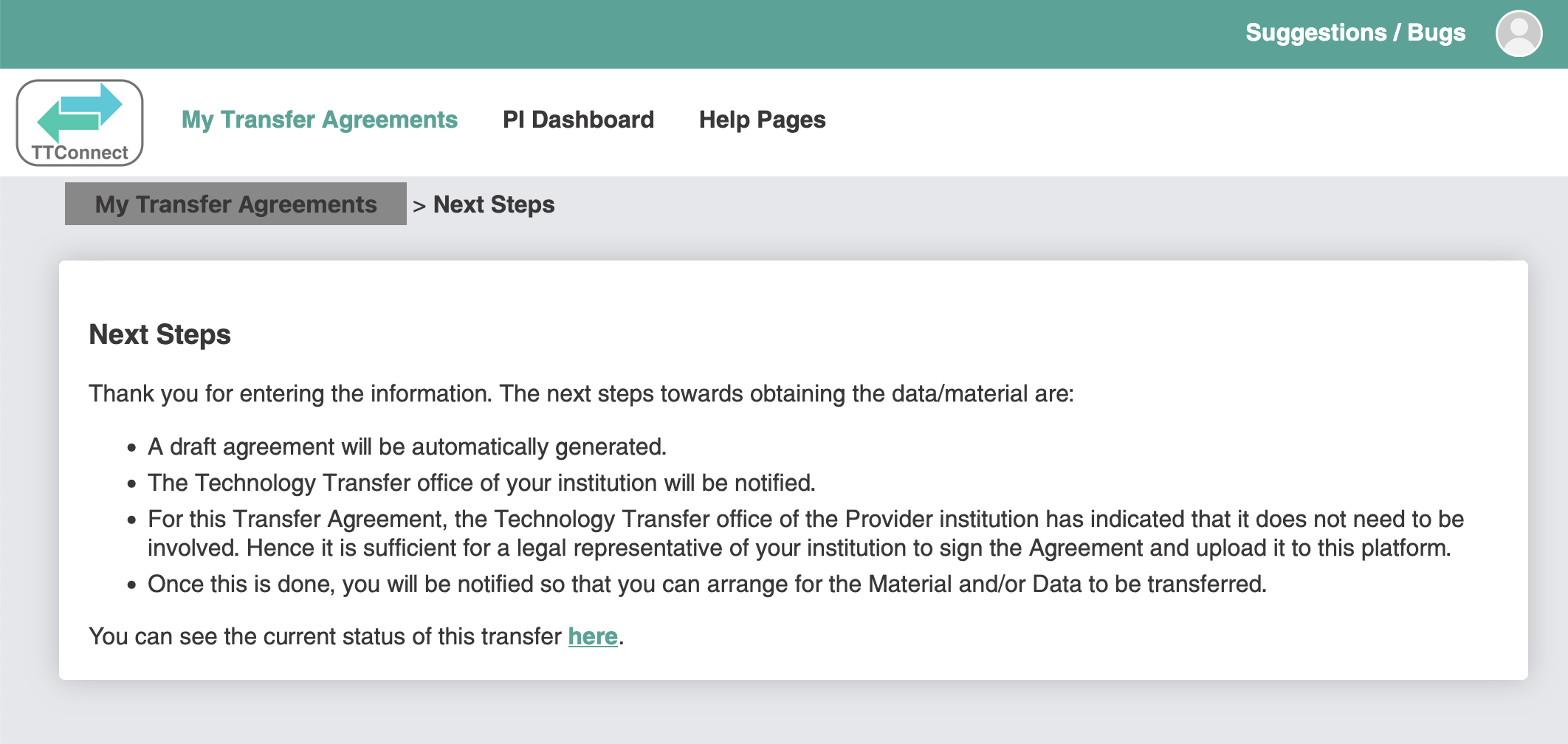
You will then see a confirmation page describing the next steps. In most cases, the MTA/DTA draft will be sent to
your Technology Transfer office. Alternatively, it will first be sent to the Provider's Technology Transfer office
for internal checks.
Steps 13-36 below should be performed by a representative of your Technology Tranfer Office.
-
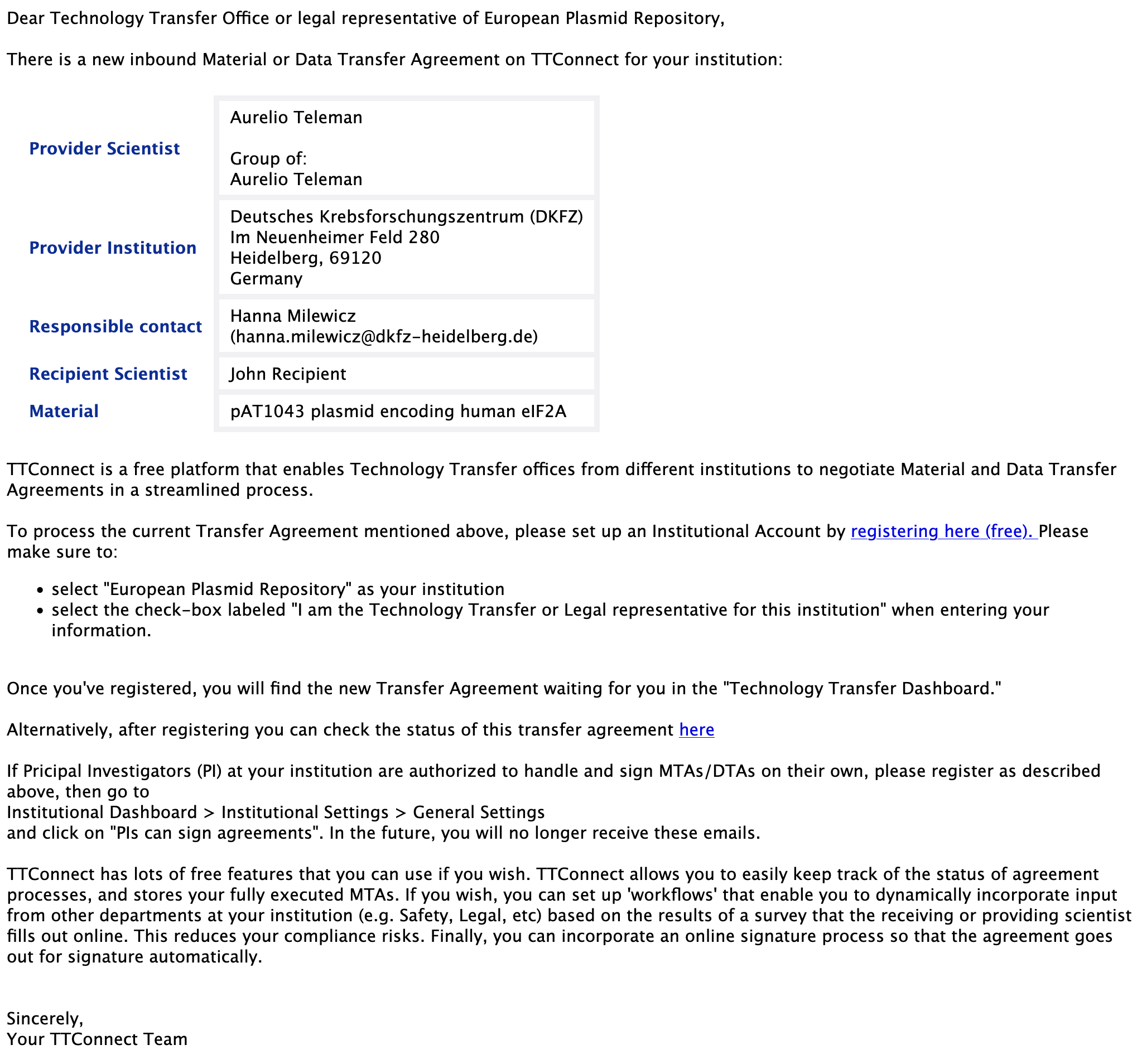
After some possible internal checks on the Provider side, the Recipient Technology Transfer representative or legal
representative of your institution will receive an email such as the one shown below. This email will inform you that
there is a new MTA/DTA for your institution, and will ask you to register on TTConnect.
-
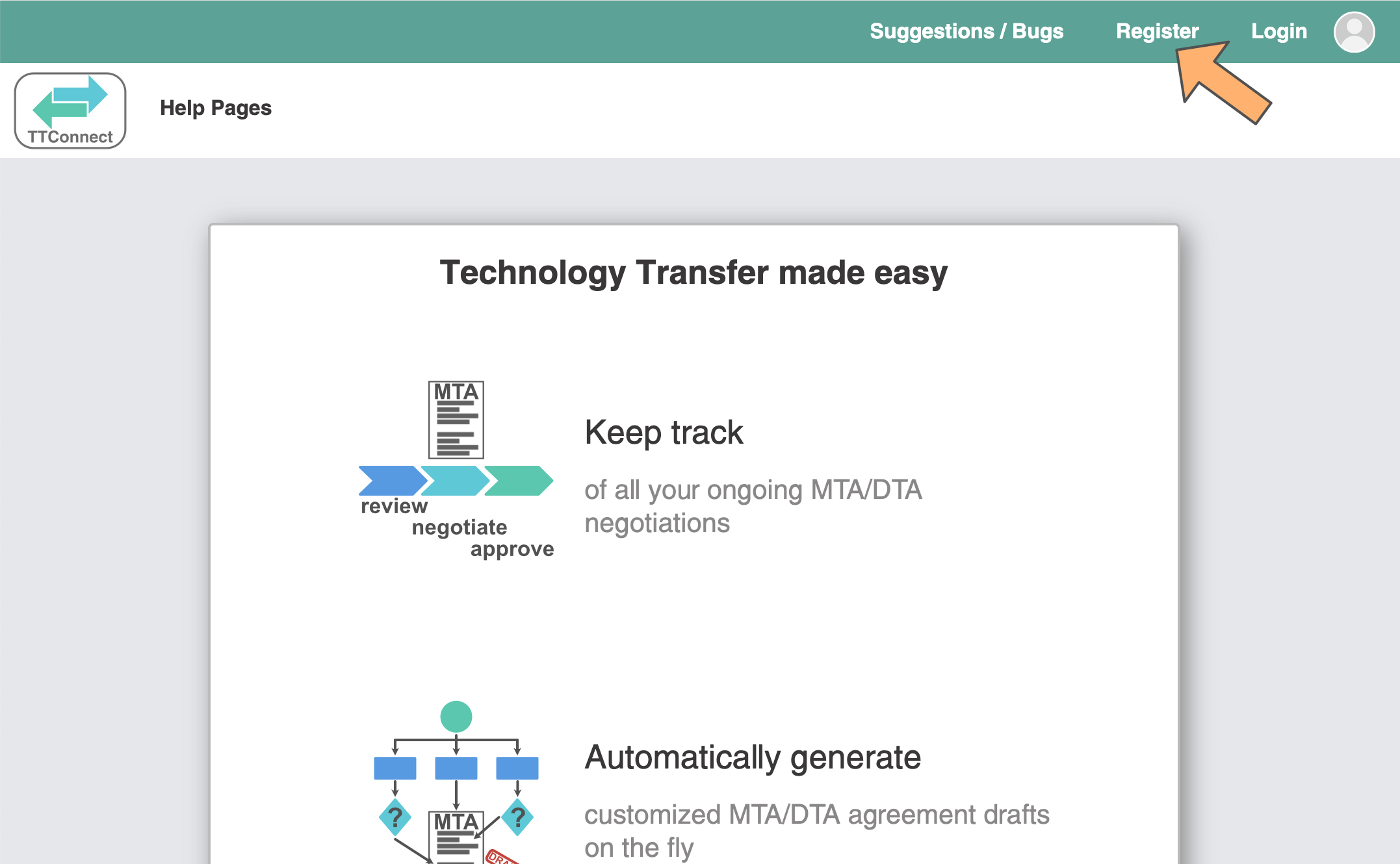
A Technology Transfer representative or legal representative of your institution should register on
TTConnect by clicking "Register" on the upper right side.
-
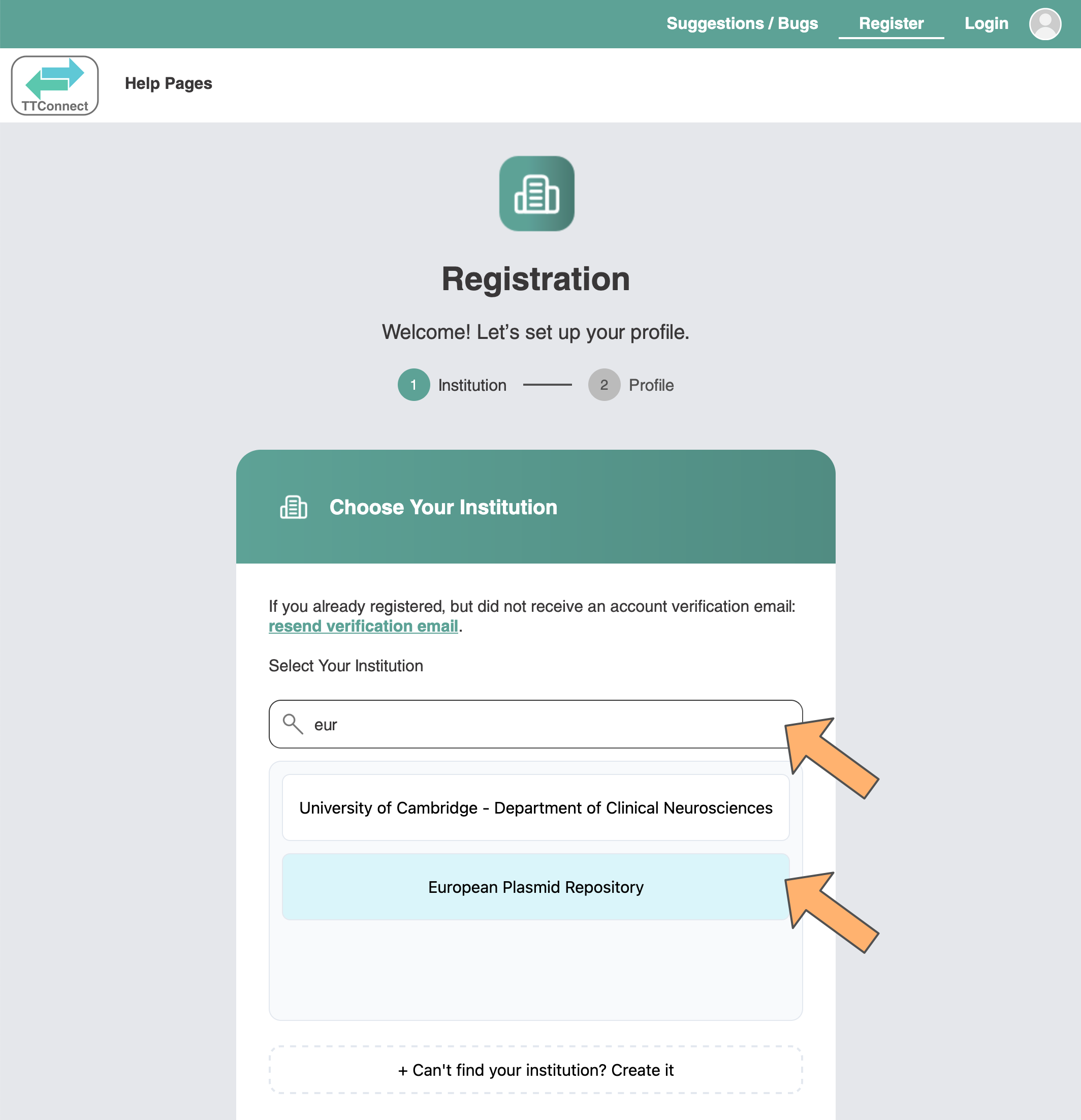
Start typing the name of your institution in the search field. Your institution should appear in the list below.
Once you find your institution, click on it. You should not create a new institution otherwise you will not see
the MTA/DTA.
-
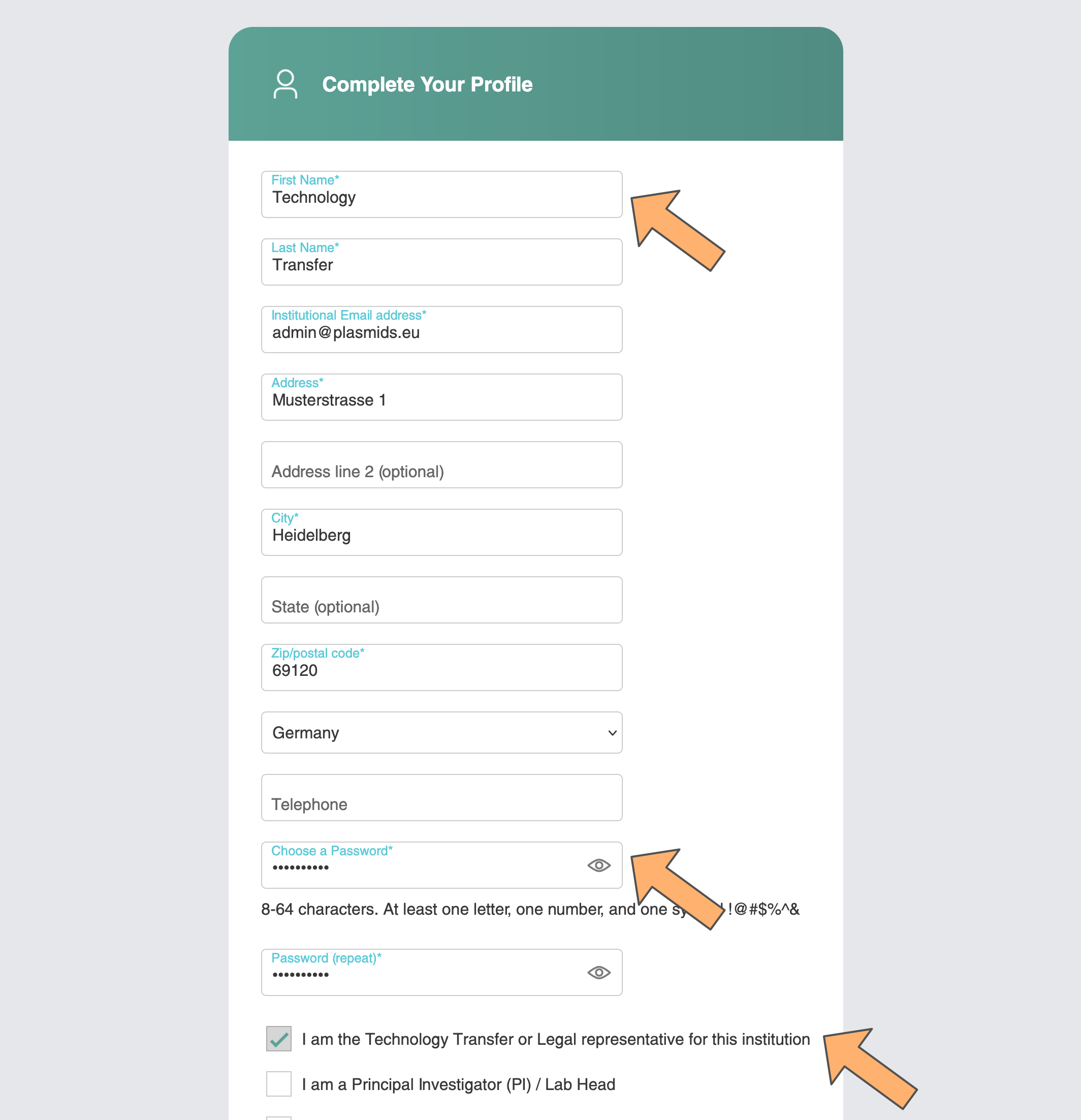
Enter your name and email address, and select a password. Importantly, you should click on the
checkbox "I am the Technology Transfer or Legal representative for this institution". Check the
remaining boxes and then click "submit".
-
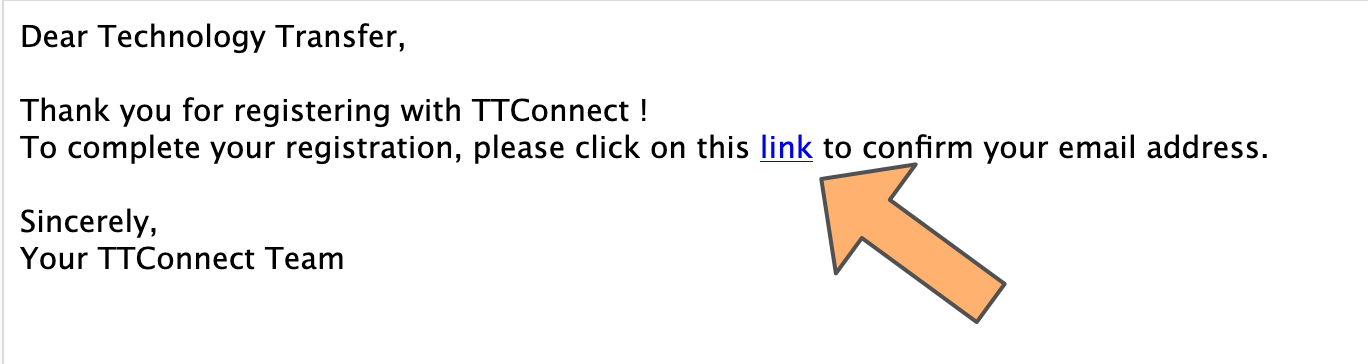
The last step to complete your registration is to confirm your email address. You should receive an email with
a confirmation link. If you don't receive one, please check your SPAM folder. Once you have received the email,
click on the link provided in the email.
-
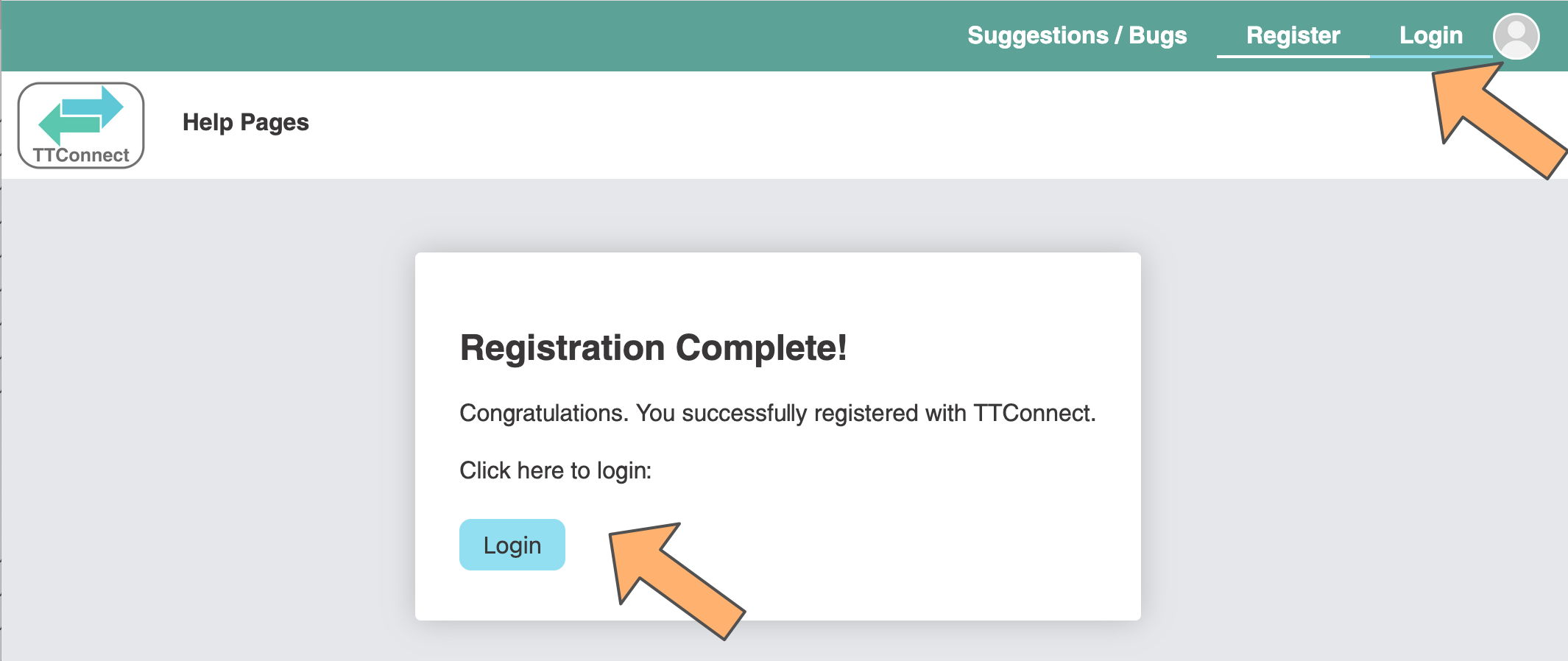
You will then see a confirmation page. The registration process is complete. To login, click one of the two
"login" buttons.
-
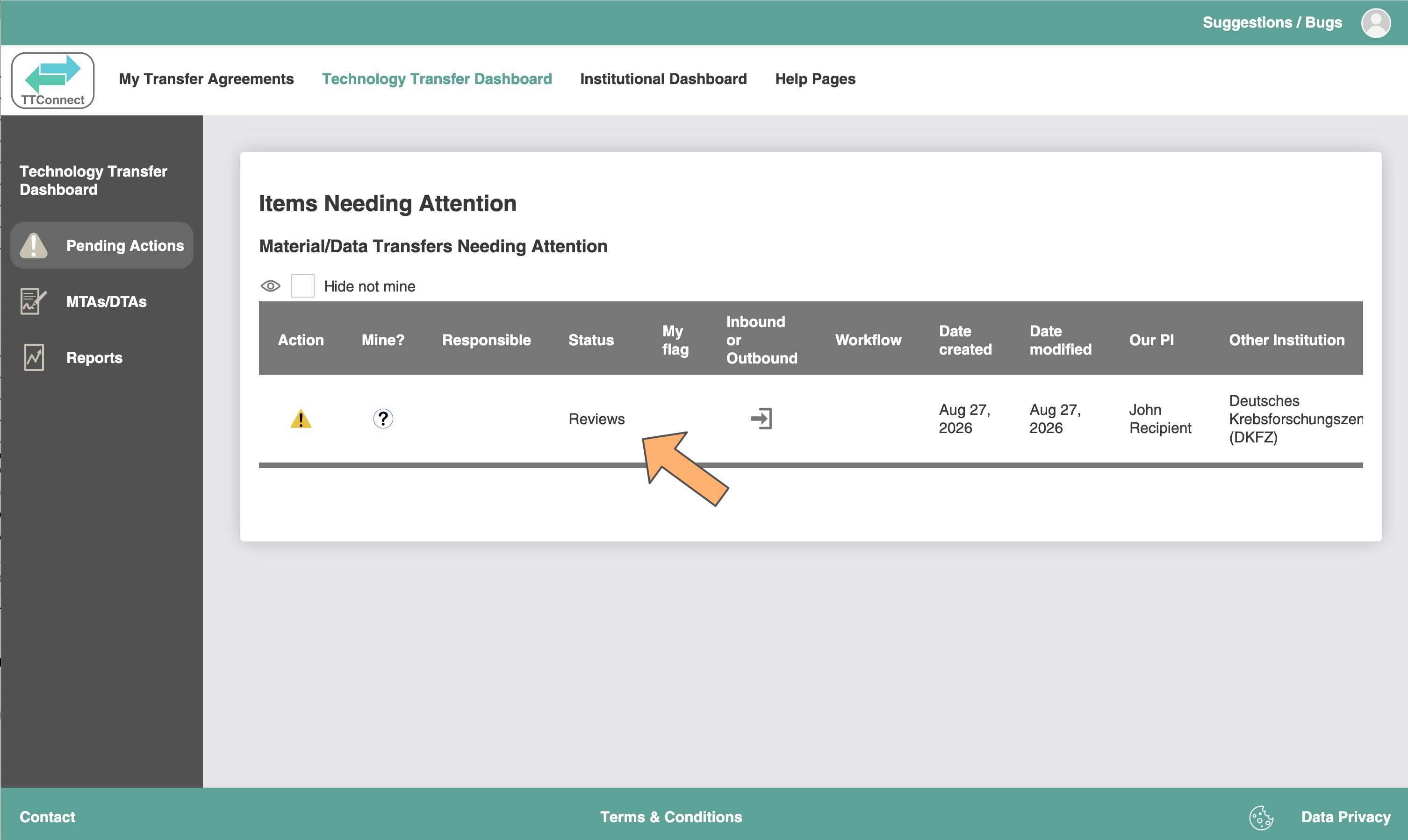
You will land on the "Technology Transfer Dashboard" and should see the MTA/DTA in the table of items needing your
attention. Click on it.
-
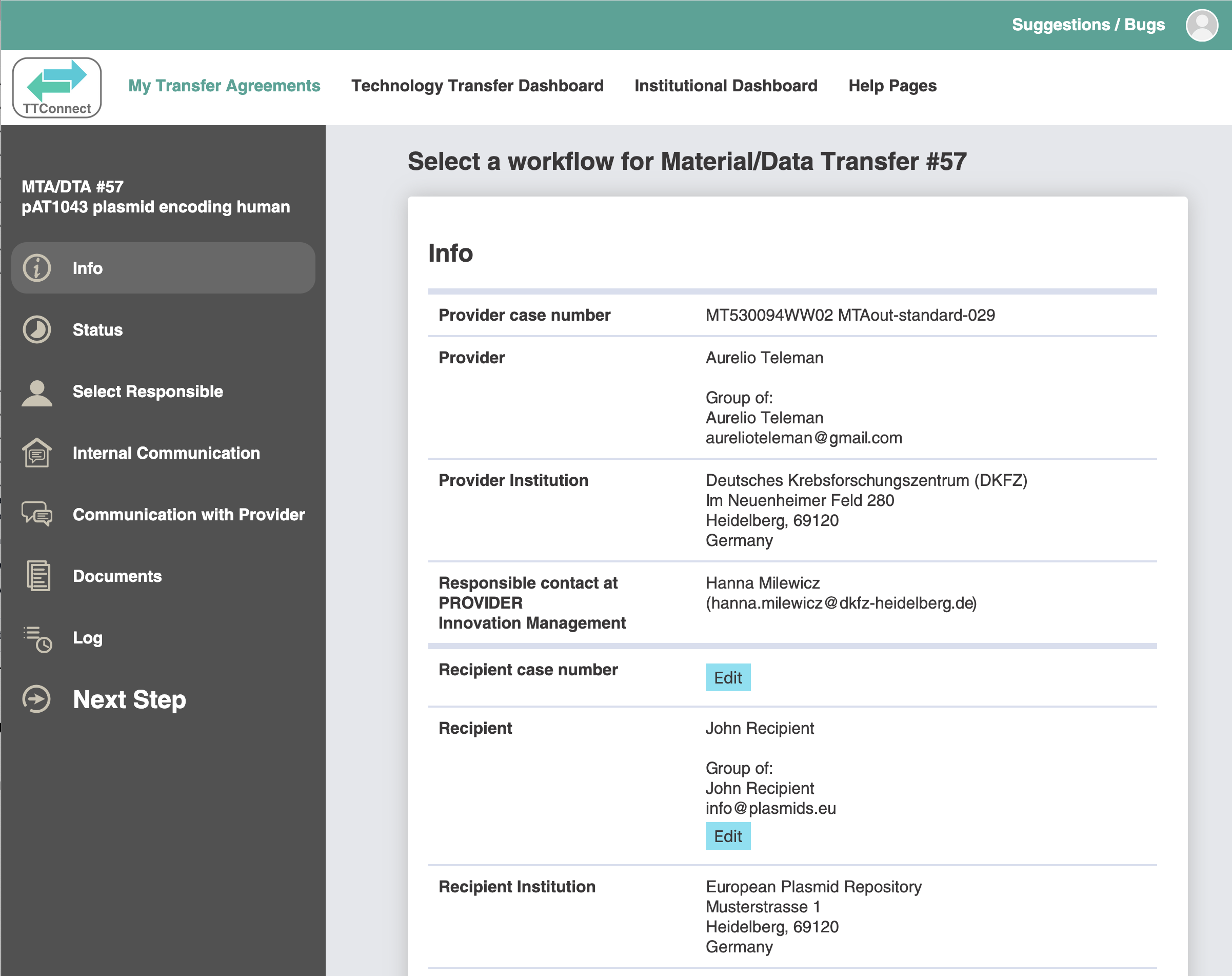
On the left side you will see various menu items pertaining to your MTA/DTA. The "Info" tab provides
general information regarding the MTA, such as the identity of the Provider, the Recipient, the Material, etc.
-
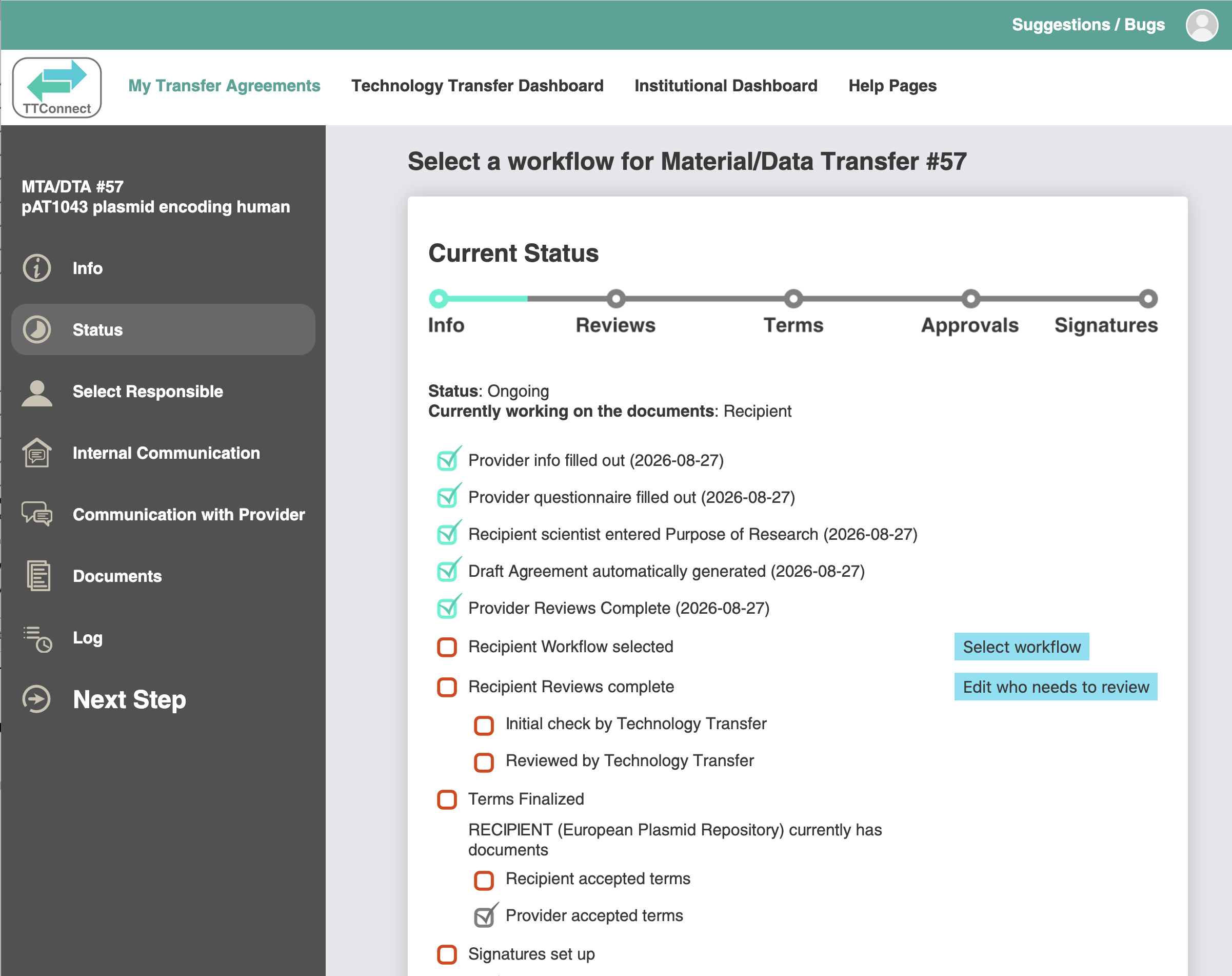
The "Status" tab shows you the current status of the MTA. In the future, you can come back and check the status of your MTA/DTA
at any point in time.
-
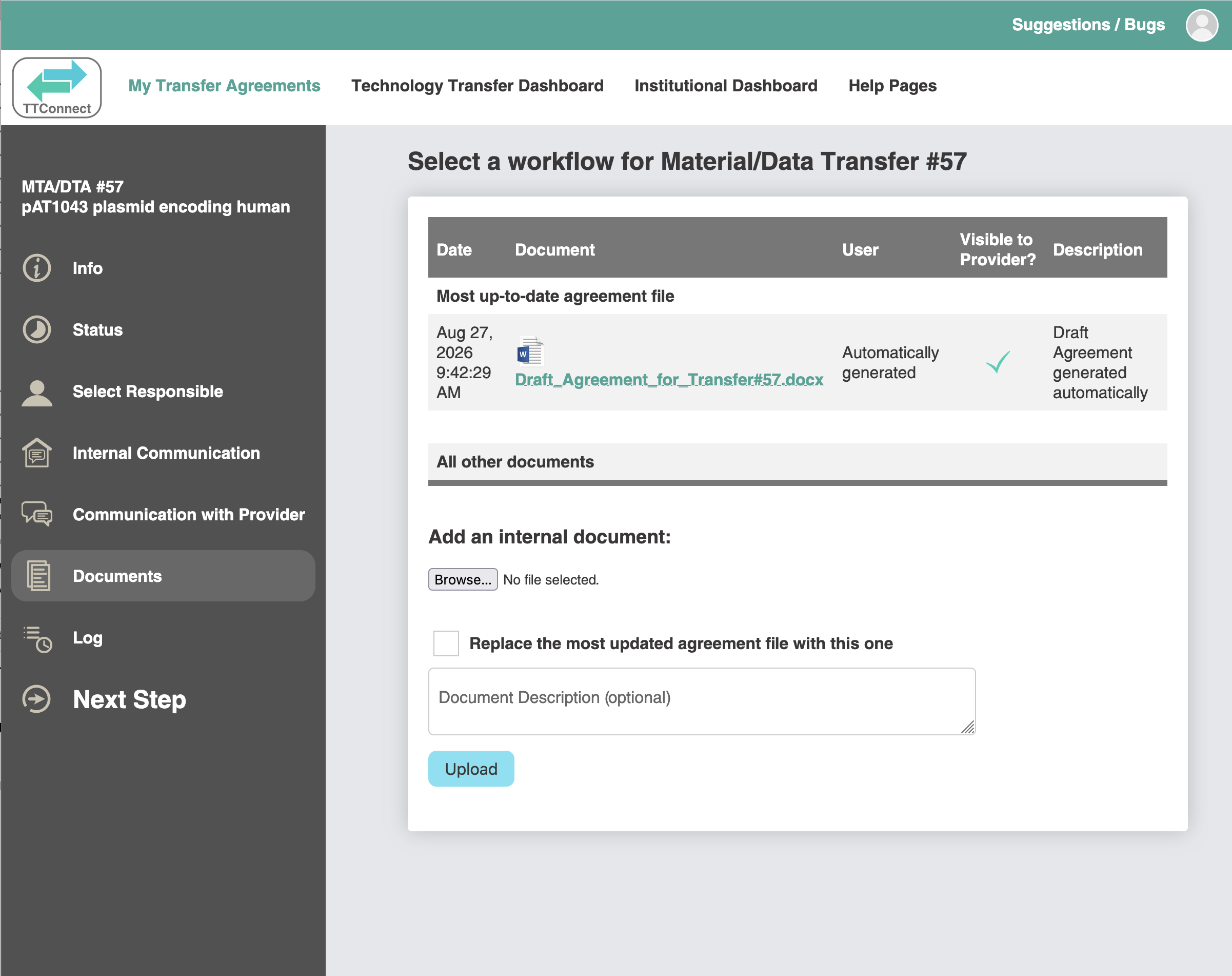
The "Documents" tab shows you all documents associated with this MTA/DTA.
-
The most important tab is the "Next Step" tab. This shows you the next step required to process your agreement.
The first step is to decide whether you want to use advanced features of the TTConnect platform, or simply proceed to your MTA/DTA. In most cases, simply click on "Proceed to Transfer Agreement".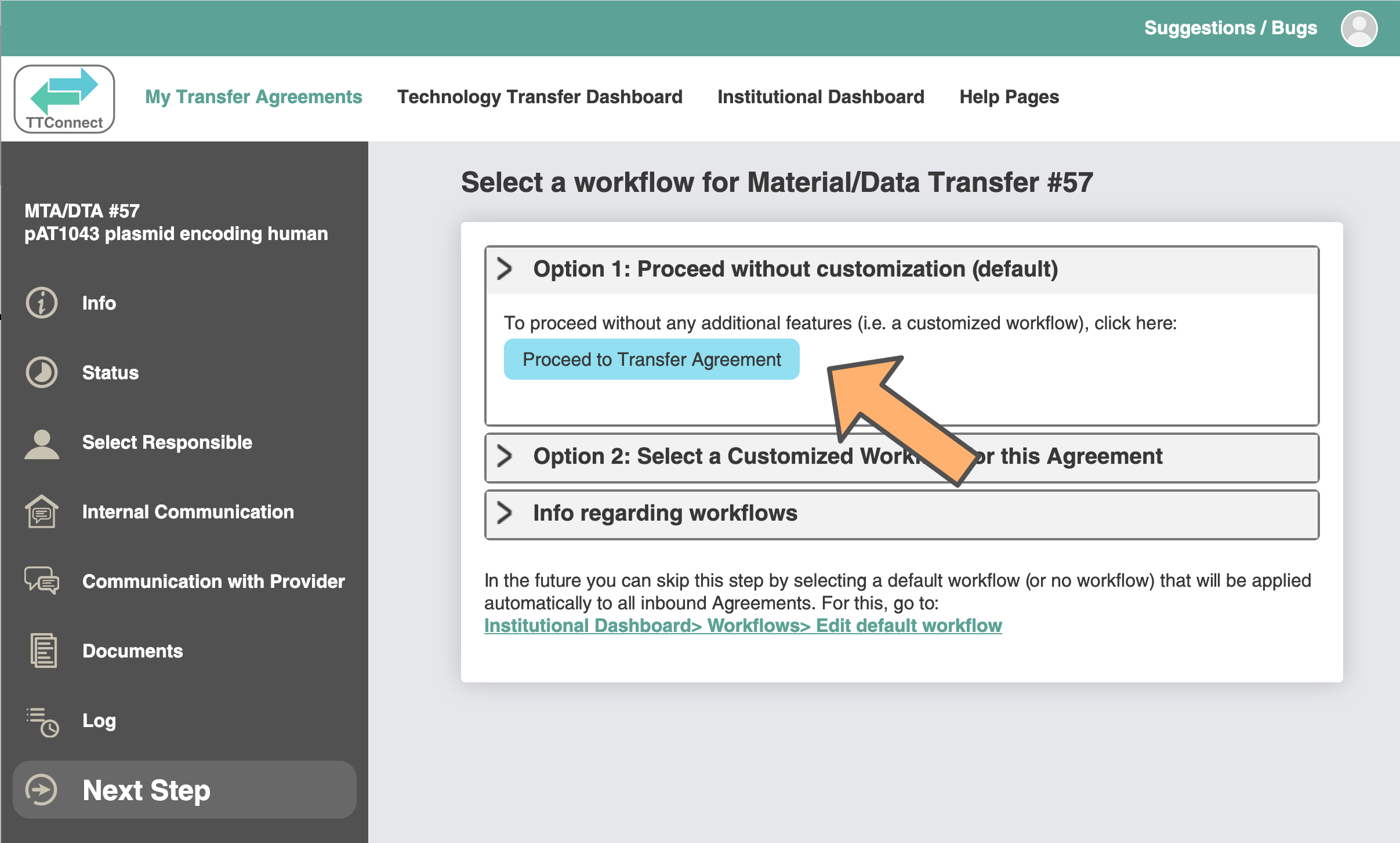
-
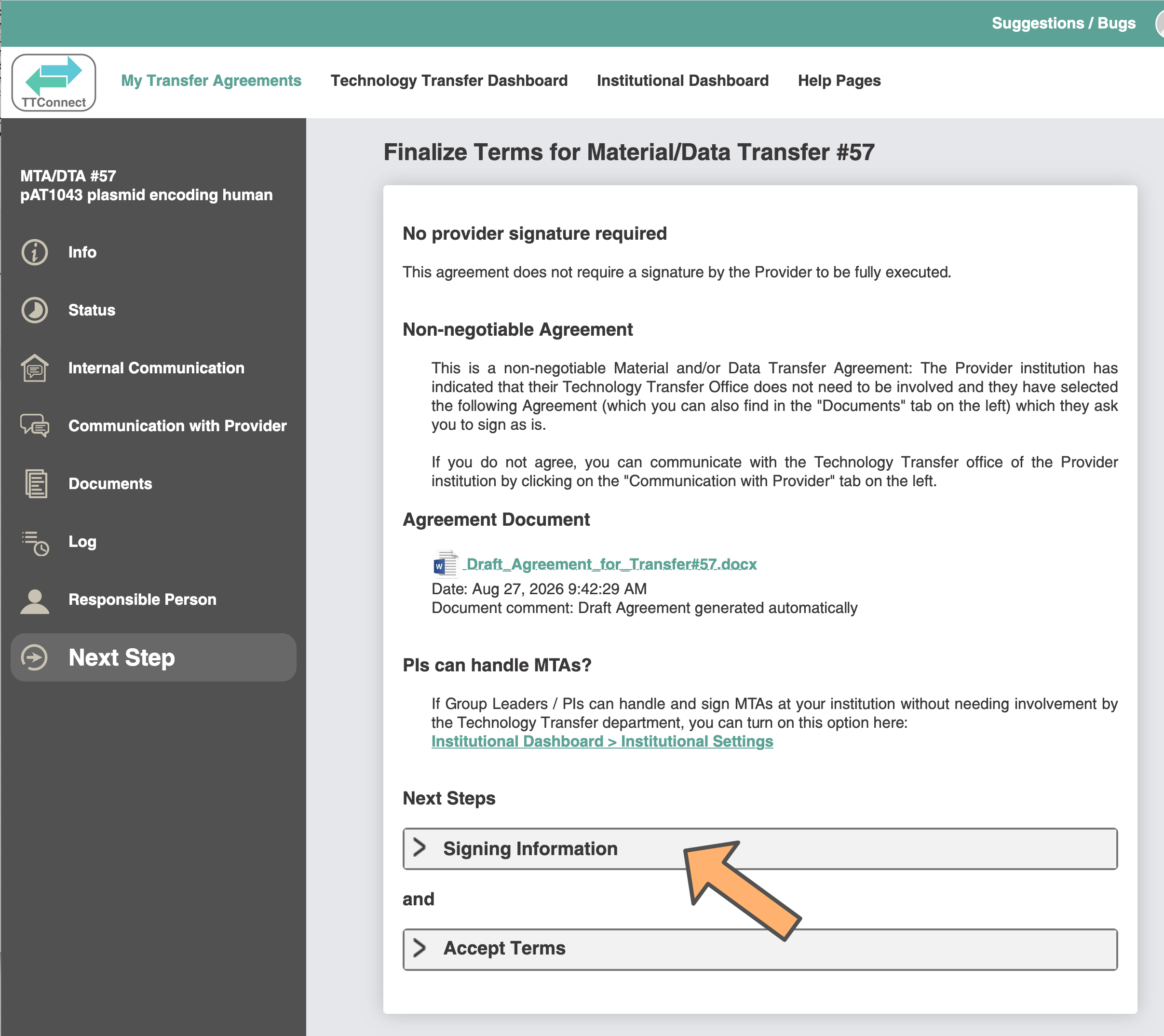
On the "Next Step" tab, enter information regarding who will sign this agreement on your (recipient) side. To do this, click
on "Signing Information".
-
Depending on the settings by the Provider, they may require that the recipient PI is one of the people signing.
In this case, the recipient PI name will be pre-filled as the first person signing. Nonetheless, you can click on
the "Read & Acknowledge Only" tick box to indicate that the recipient PI will only sign as having read and acknowledged
the agreement, if this is the case.
Please enter in the 2nd slot a person with legal authorization to sign agreements on behalf of your institution. There are additional slots (up to a total of 5 people) in case additional people need to sign on your side.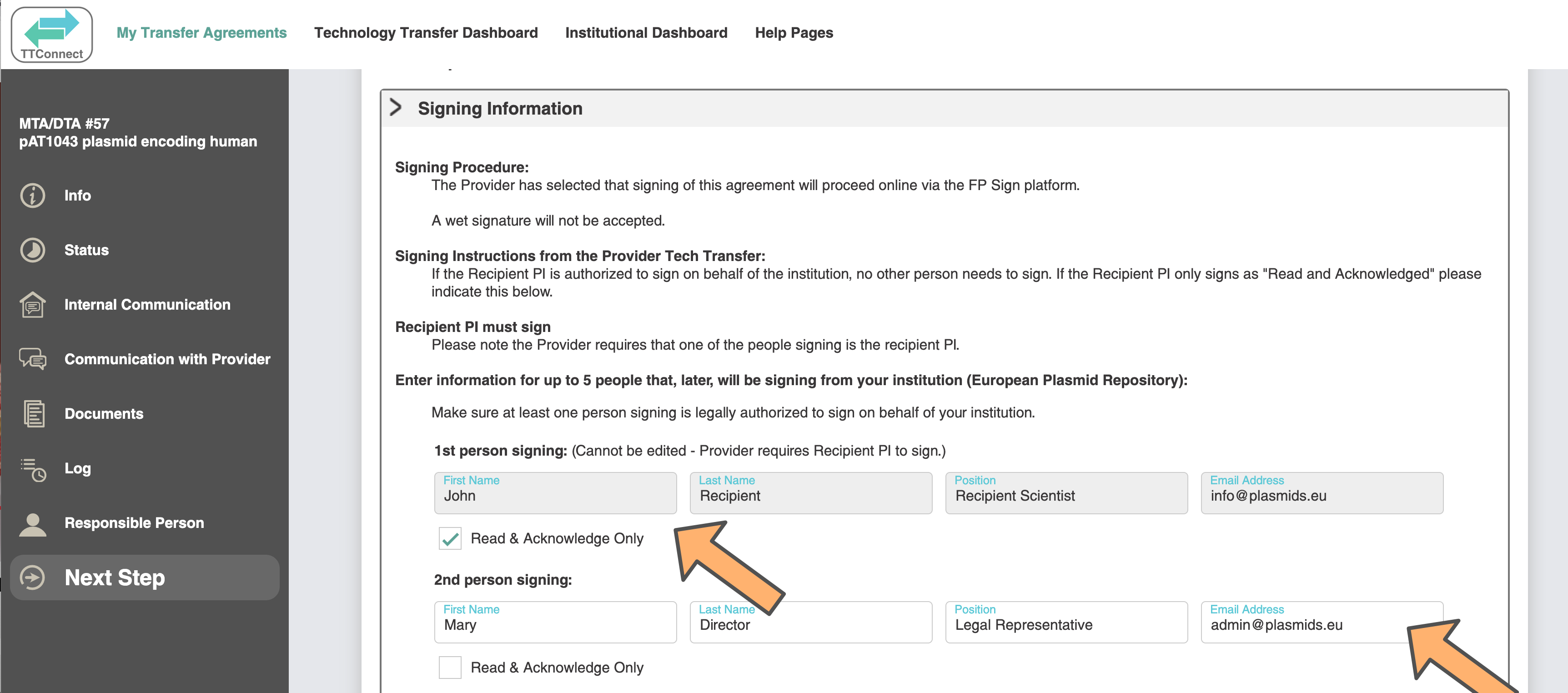
-
To finalize this step, scroll to the bottom and click "Update".
If you wish, you can provide a message for the people who will be signing the MTA on your behalf (e.g. the head of the institution). This message will appear in the email they receive later, requesting their electronic signature. For instance, you might want to write that this MTA/DTA has already been checked and approved by your Technology Transfer office.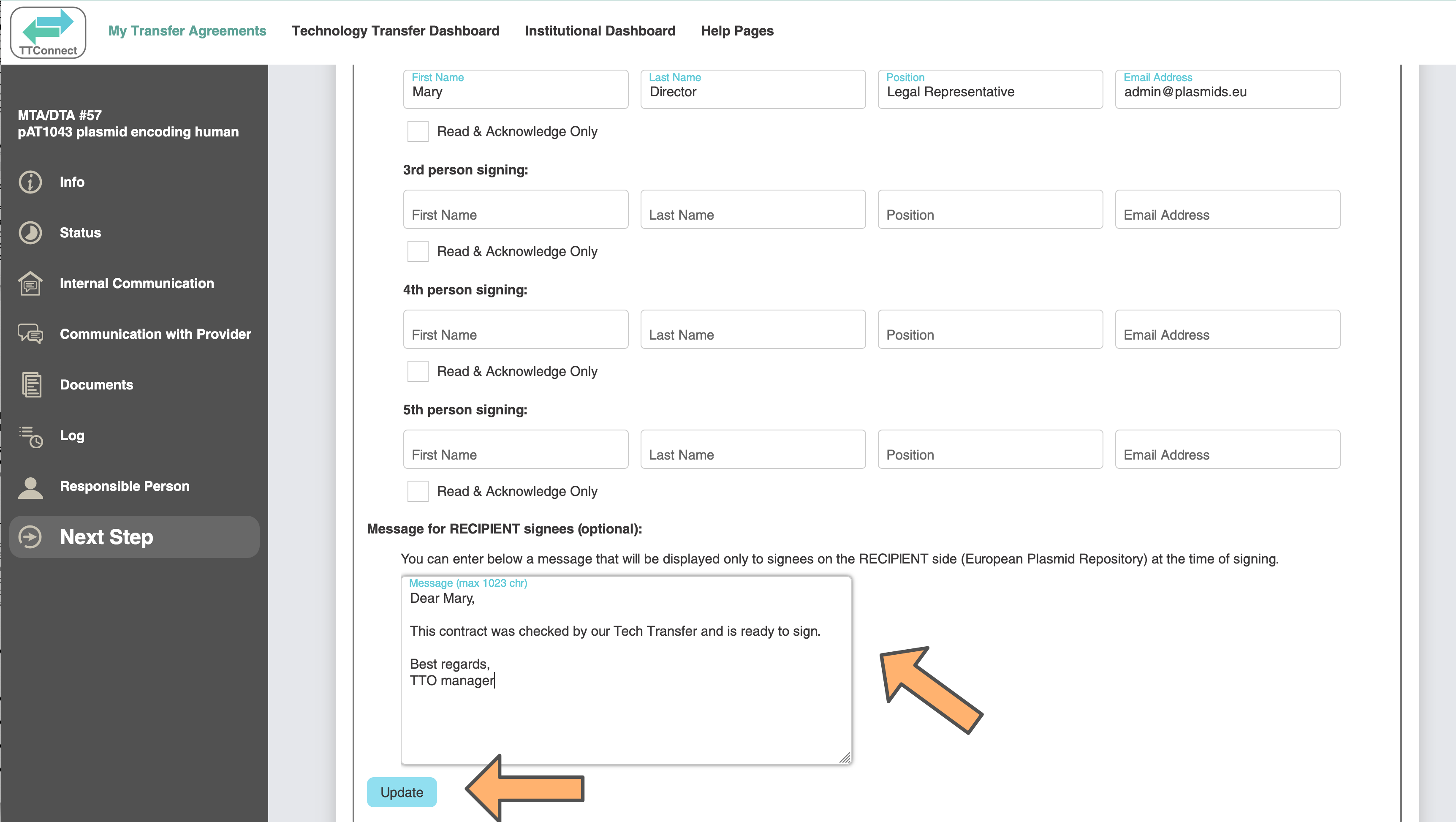
-
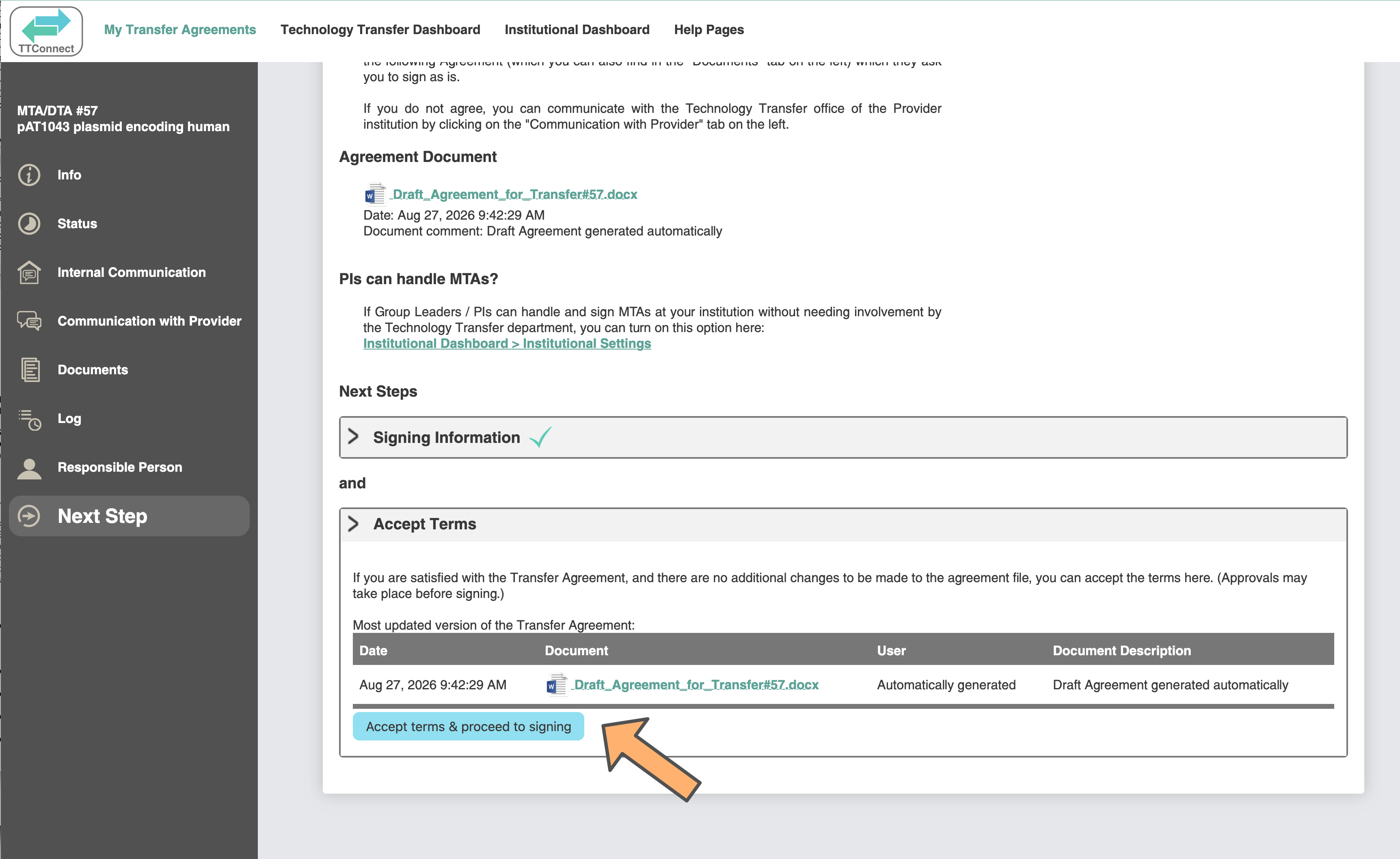
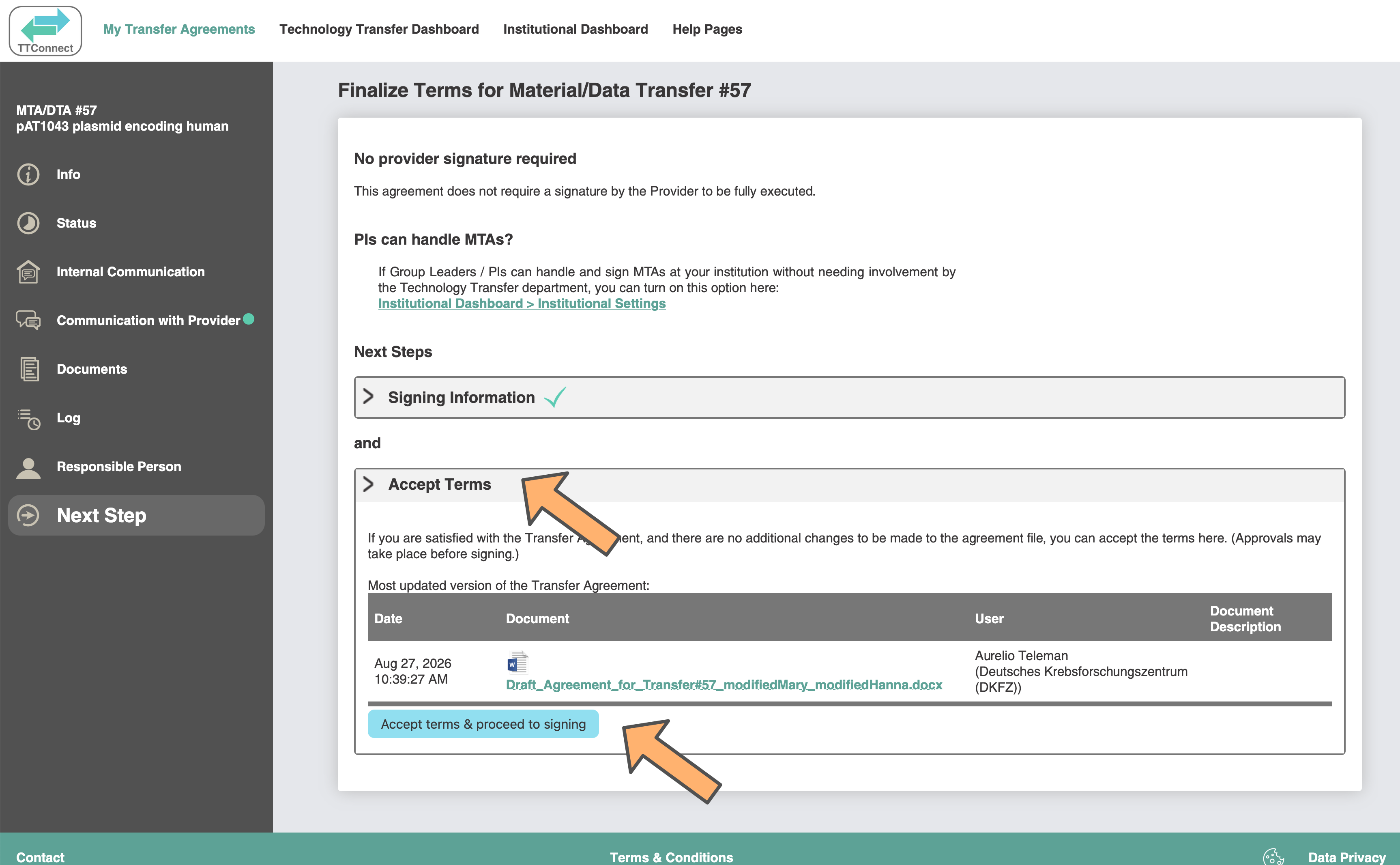
You then have two options. If you agree with the terms in the agreement, click on "Accept Terms" at the bottom of the "Next Step" tab
("Option 1" in the screenshot below). This will send you to the signing step.
If instead you do not agree with all the terms, click on "Communicate with Provider" on the left ("Option 2"). (See step 31 below).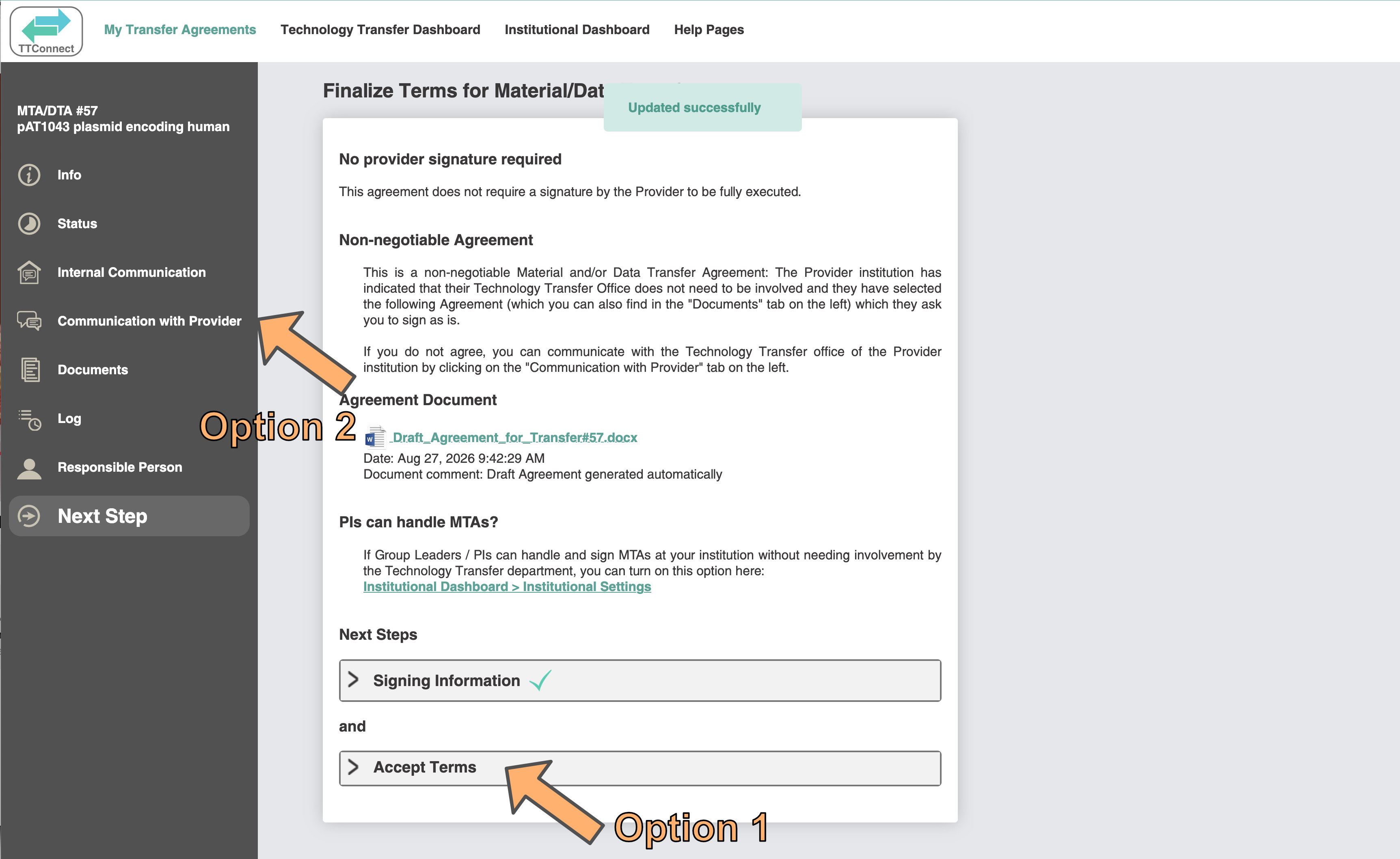
-
If you click on "Accept Terms" you can then click on "Accept terms & proceed to signing".
-
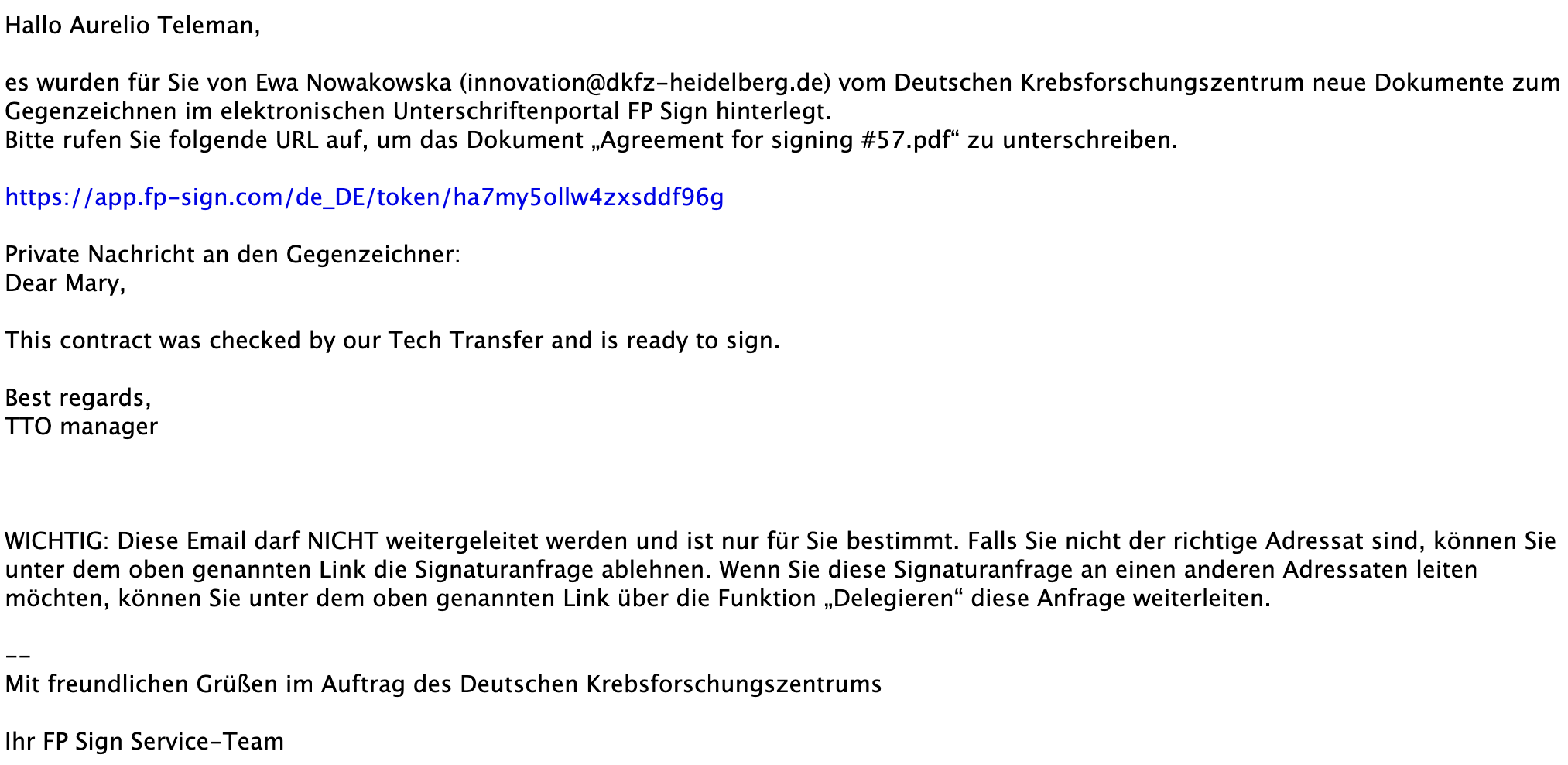
In that case, the people who need to sign the agreement will receive an email from a digital signature service such
as FP-Sign or DocuSign asking them to sign.
-
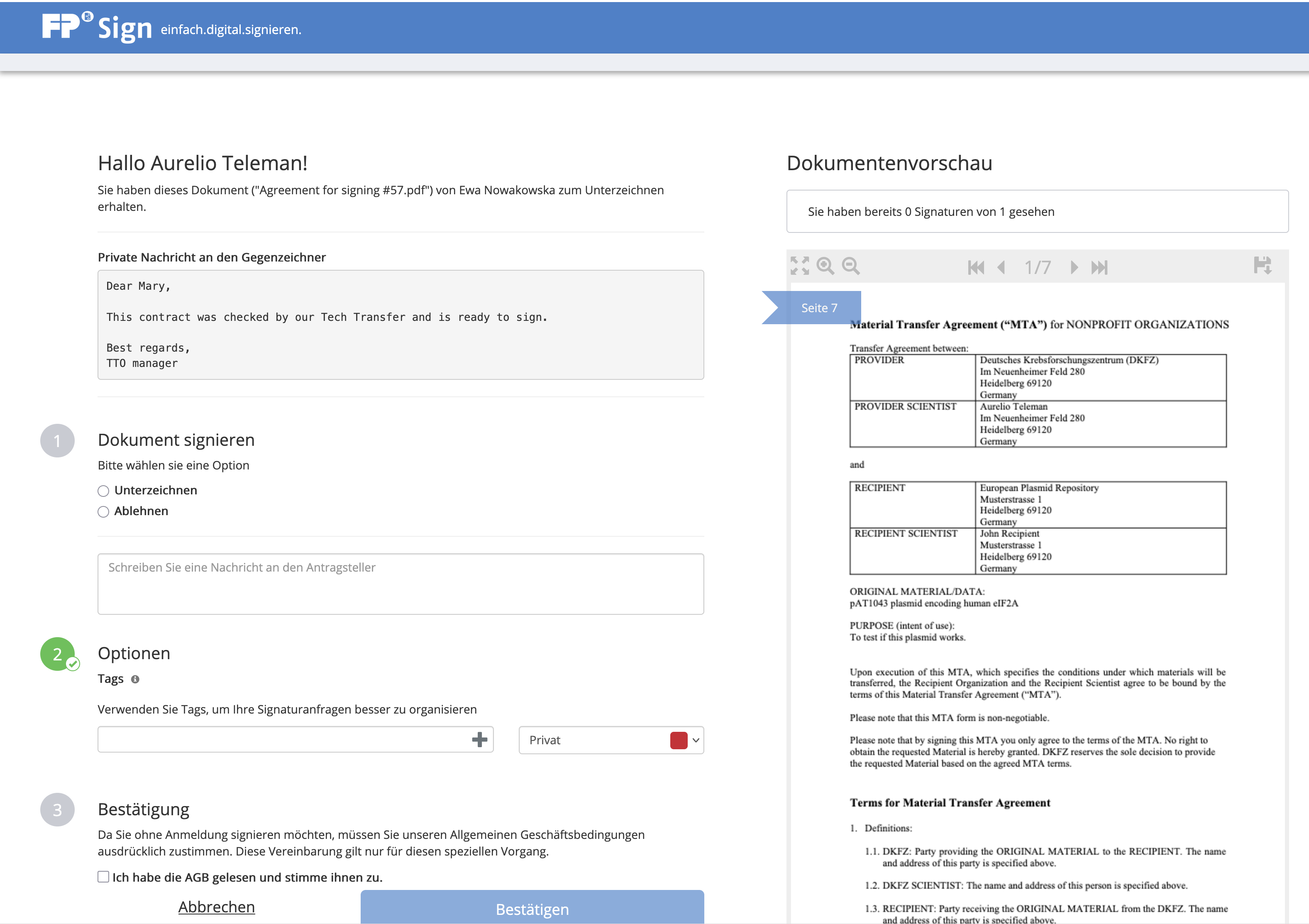
The FP-Sign digital signature interface will look something like this.
-
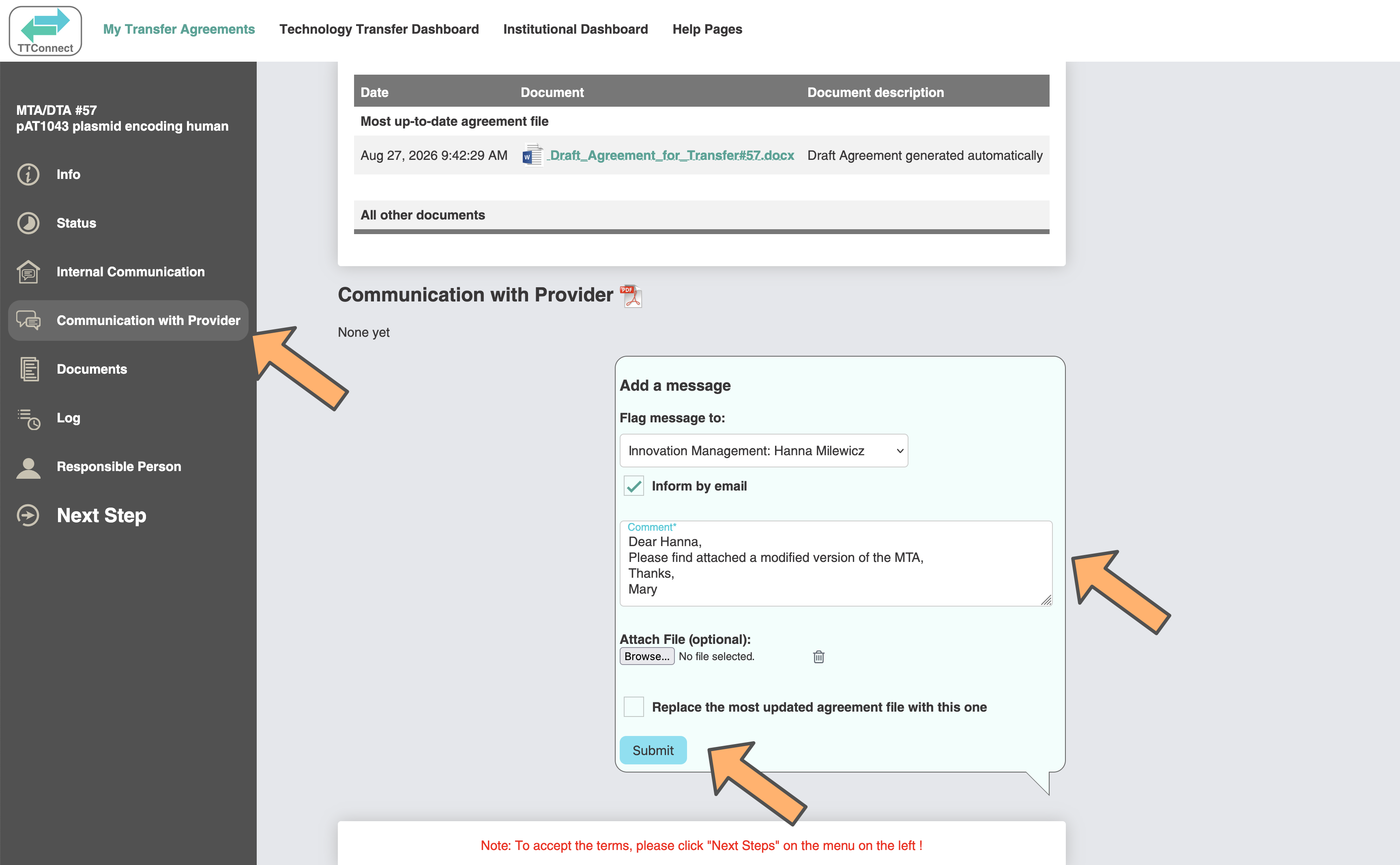
If instead you do not agree with all the terms, please communicate with the Provider. To do so,
click on the "Communication with Provider" tab on the left. You can then send a message to the
Provider Technology Transfer office, and also upload a modified agreement with your edits.
-
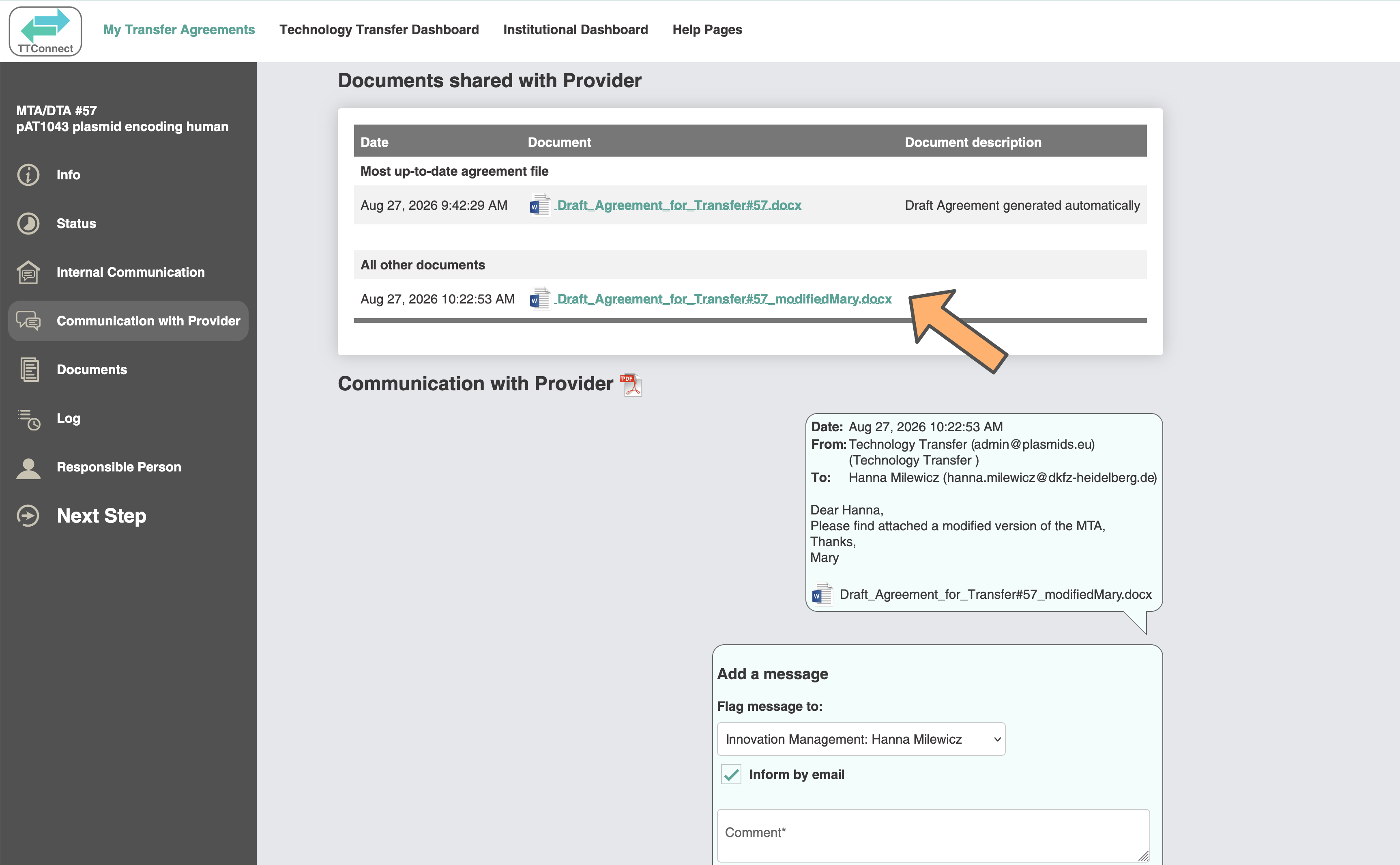
The newly uploaded agreement will be visible in the list of documents...
-
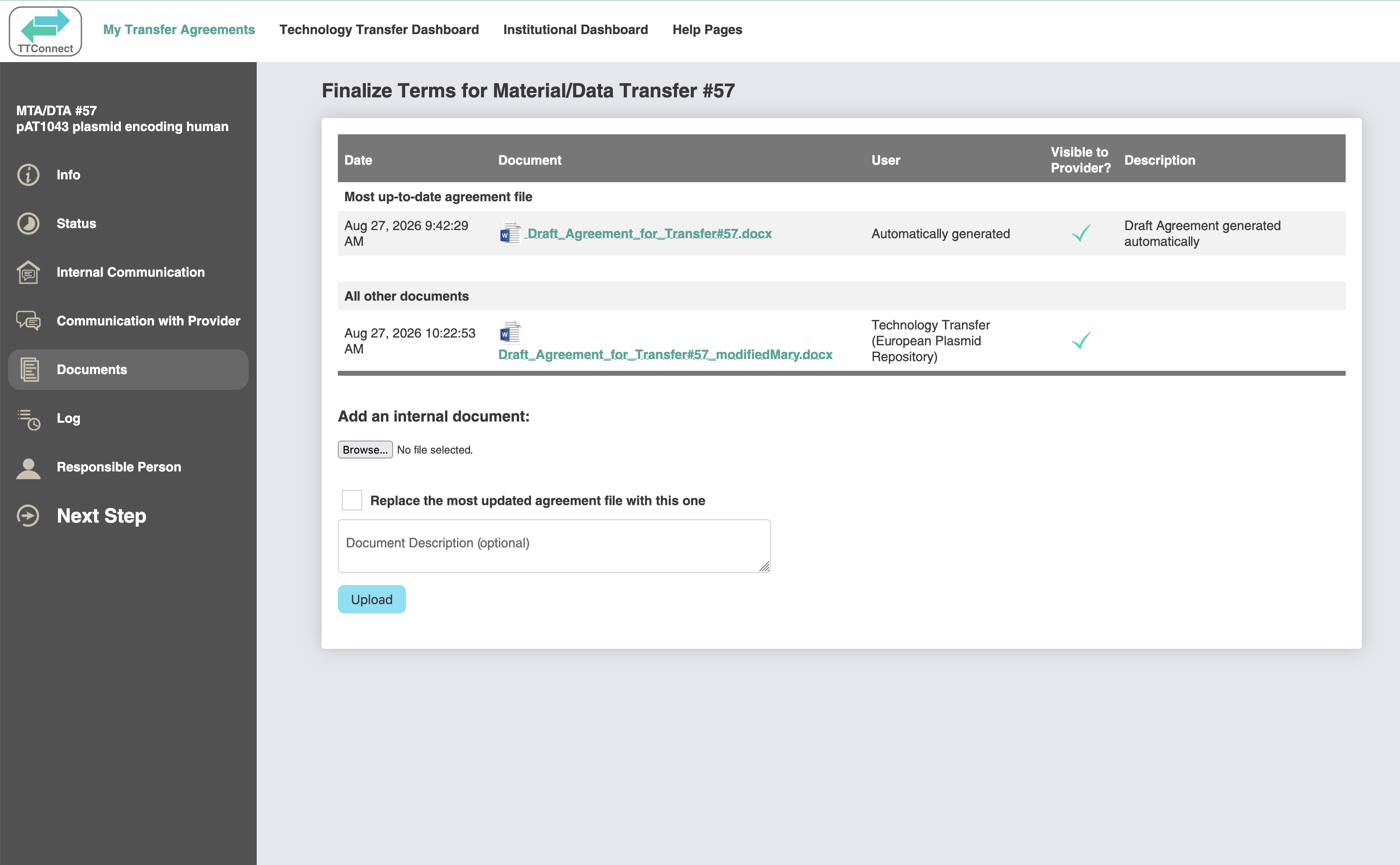
...and in the "Documents" tab on the left.
-
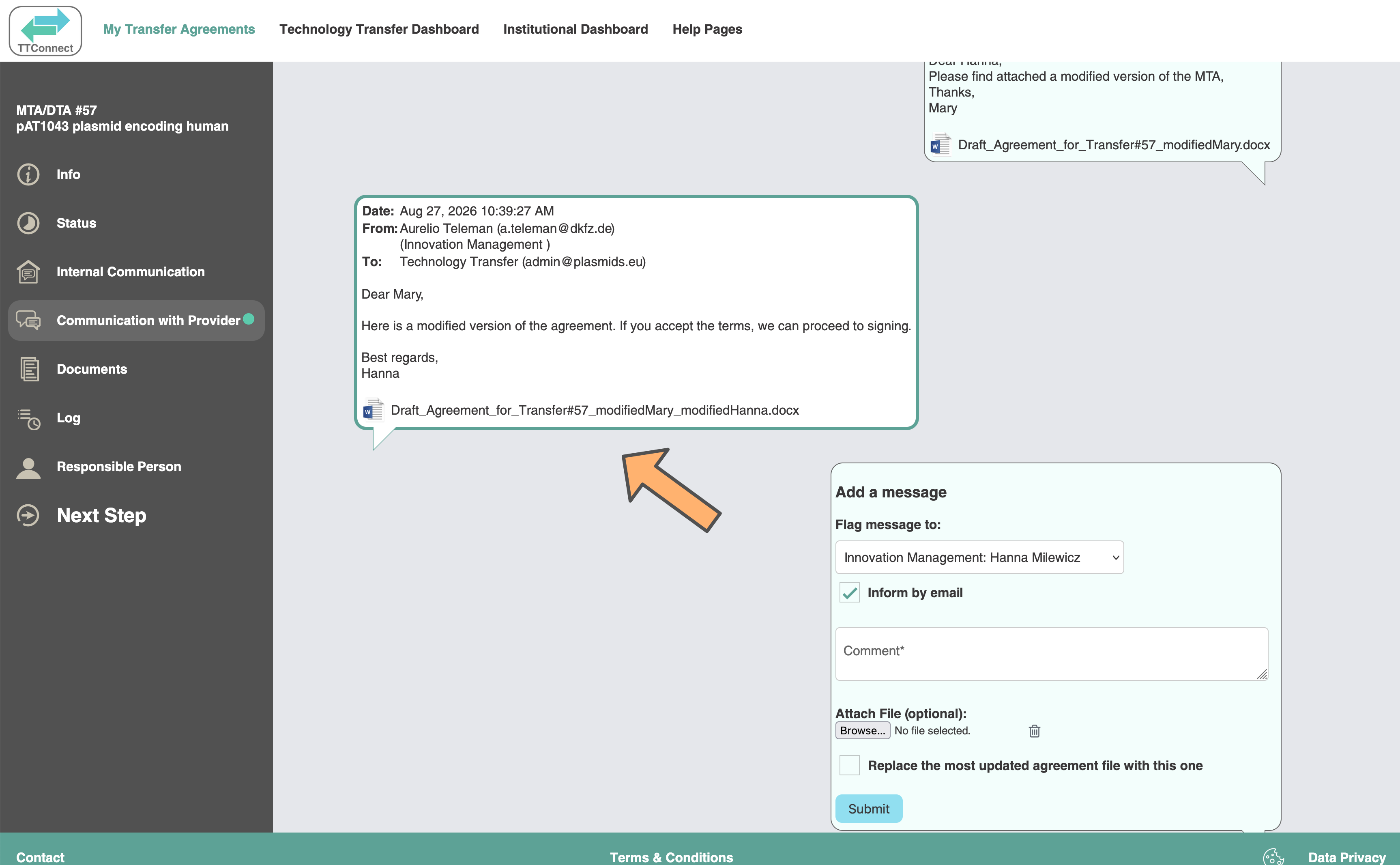
When the Provider Technology Transfer office replies and sends you a message with an updated agreement, you will
receive an email, and a message will appear in the "Communicate with Provider" tab.
-
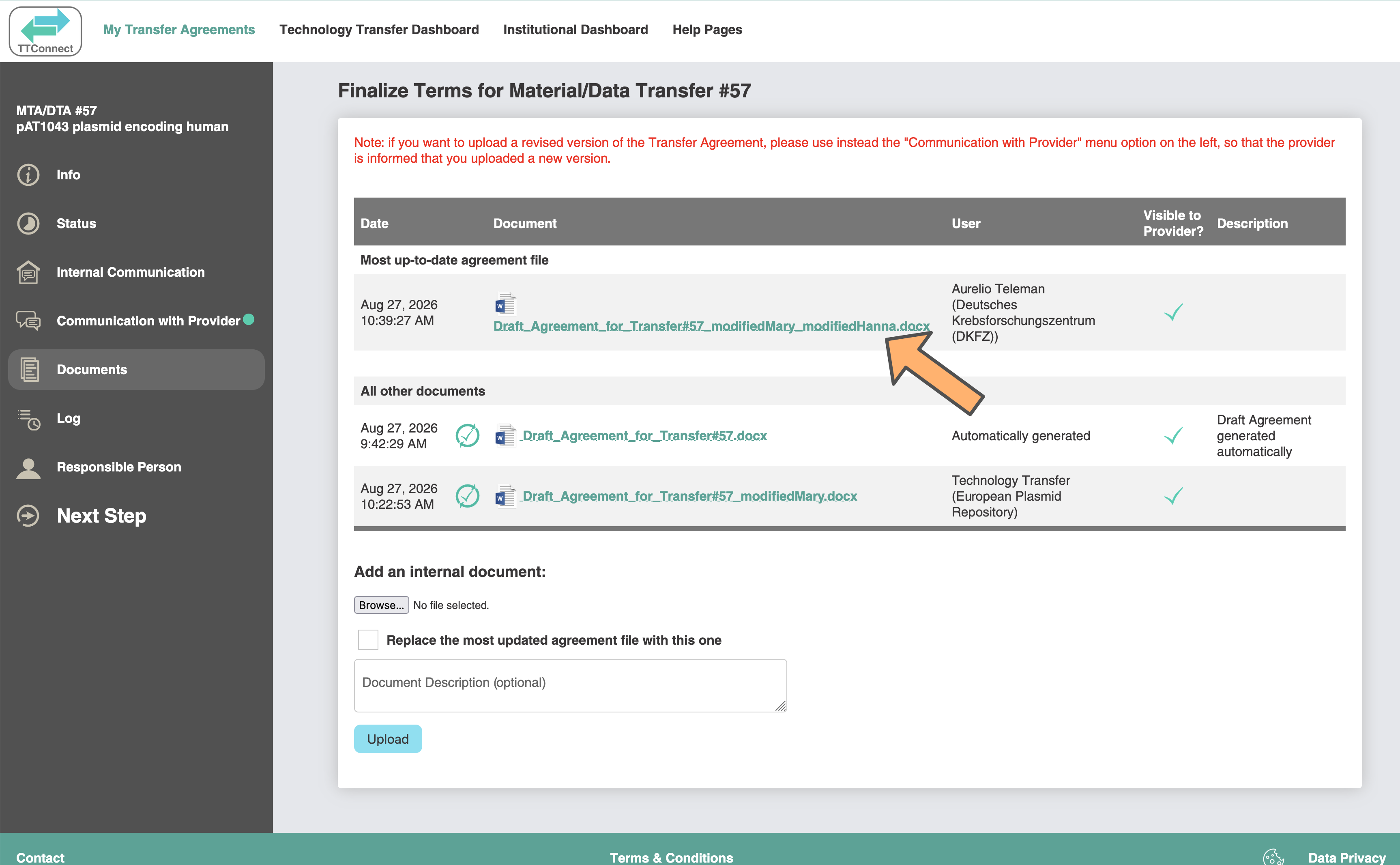
You will also see the updated agreement that the Provider sent in the "Documents" tab.
-
Once you agree on the terms, click on "Accept Terms" in the "Next Step" tab, and then click on
"Accept terms & proceed to signing".

Processing...